> ## Documentation Index
> Fetch the complete documentation index at: https://developer.pdf.co/llms.txt
> Use this file to discover all available pages before exploring further.
# ChatGPT desktop and Codex
> Use PDF.co MCP in local Work or Codex chats in the Windows desktop app.
Use the Windows desktop app's MCP settings to start PDF.co locally. Complete the [shared prerequisites](/api/mcp/overview#before-you-start) first.
These steps apply to desktop chats that run on your local computer. ChatGPT web does not read this local server configuration.
## Choose Work or Codex
ChatGPT and Codex are available in the same desktop app. To use the local PDF.co MCP server, choose either of these routes:
* Select **ChatGPT**, then switch from **Chat** to the **Work** tab.
* Select **Codex** in the app's product selector and open a local task.
If the app offers a choice of where to run the task, choose your local computer. The regular **Chat** view may ask you to continue in Work when you request PDF.co MCP tools. Switch to **Work** and resend the prompt.
## Add the server
1. Open **Settings > Plugins**.
2. Open the **Add** dropdown and select **Add MCP server**.
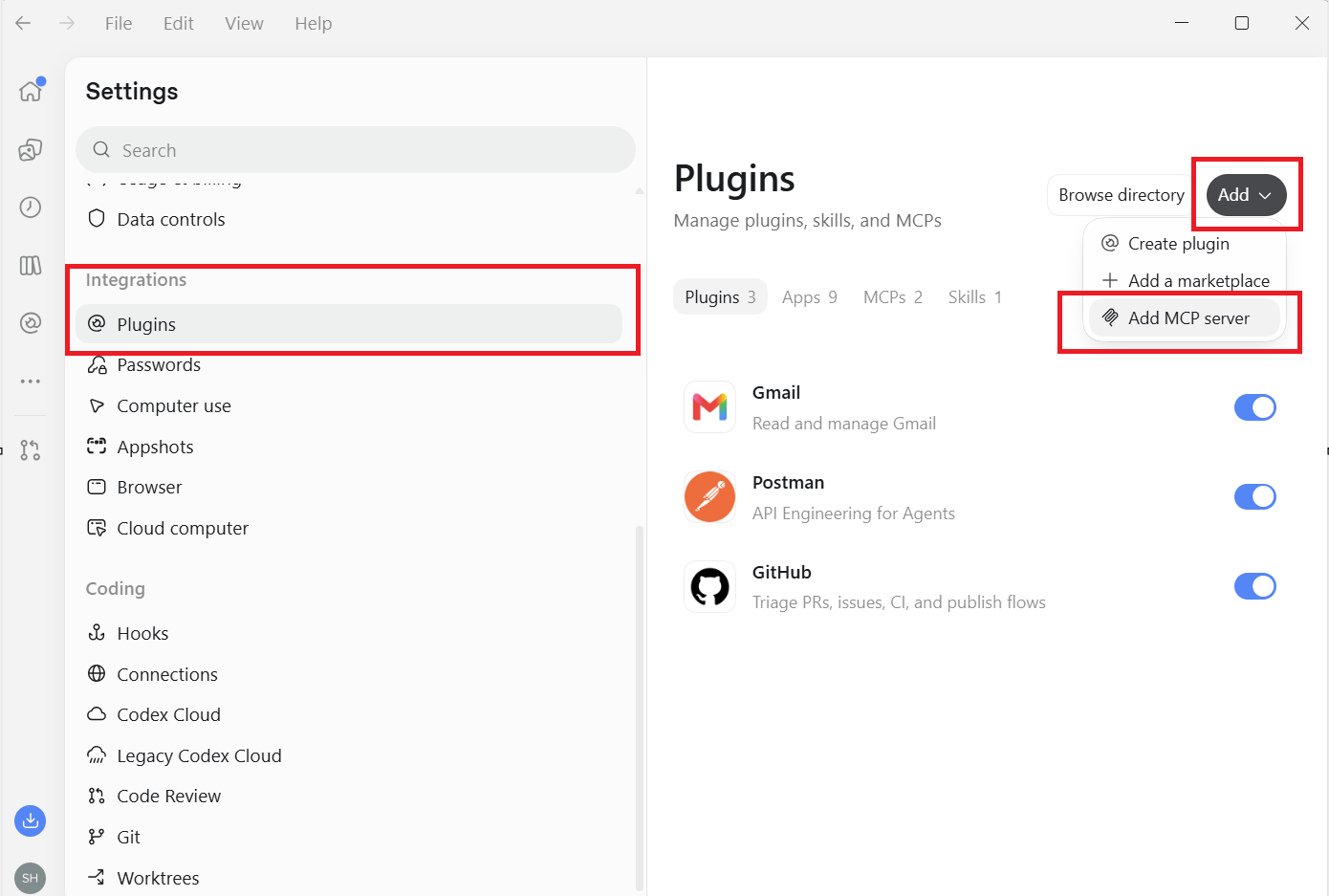 3. In **Connect to a custom MCP**, enter the following values:
| Field | Value |
| - | - |
| Name | `pdfco` |
| Type | `STDIO` |
| Command to launch | The full path returned by `(Get-Command uvx -ErrorAction Stop).Source` |
| Arguments | One argument: `pdfco-mcp` |
| Environment variable name | `X_API_KEY` |
| Environment variable value | Your API key from the [PDF.co dashboard](https://app.pdf.co/) |
| Environment variable passthrough | Leave blank |
| Working directory, if shown | Leave blank |
Paste the executable path into the command field without JSON escaping or extra quotes. Keep `pdfco-mcp` in the arguments field. This connection uses an environment variable for authentication, so it does not require a server URL or OAuth sign-in.
3. In **Connect to a custom MCP**, enter the following values:
| Field | Value |
| - | - |
| Name | `pdfco` |
| Type | `STDIO` |
| Command to launch | The full path returned by `(Get-Command uvx -ErrorAction Stop).Source` |
| Arguments | One argument: `pdfco-mcp` |
| Environment variable name | `X_API_KEY` |
| Environment variable value | Your API key from the [PDF.co dashboard](https://app.pdf.co/) |
| Environment variable passthrough | Leave blank |
| Working directory, if shown | Leave blank |
Paste the executable path into the command field without JSON escaping or extra quotes. Keep `pdfco-mcp` in the arguments field. This connection uses an environment variable for authentication, so it does not require a server URL or OAuth sign-in.
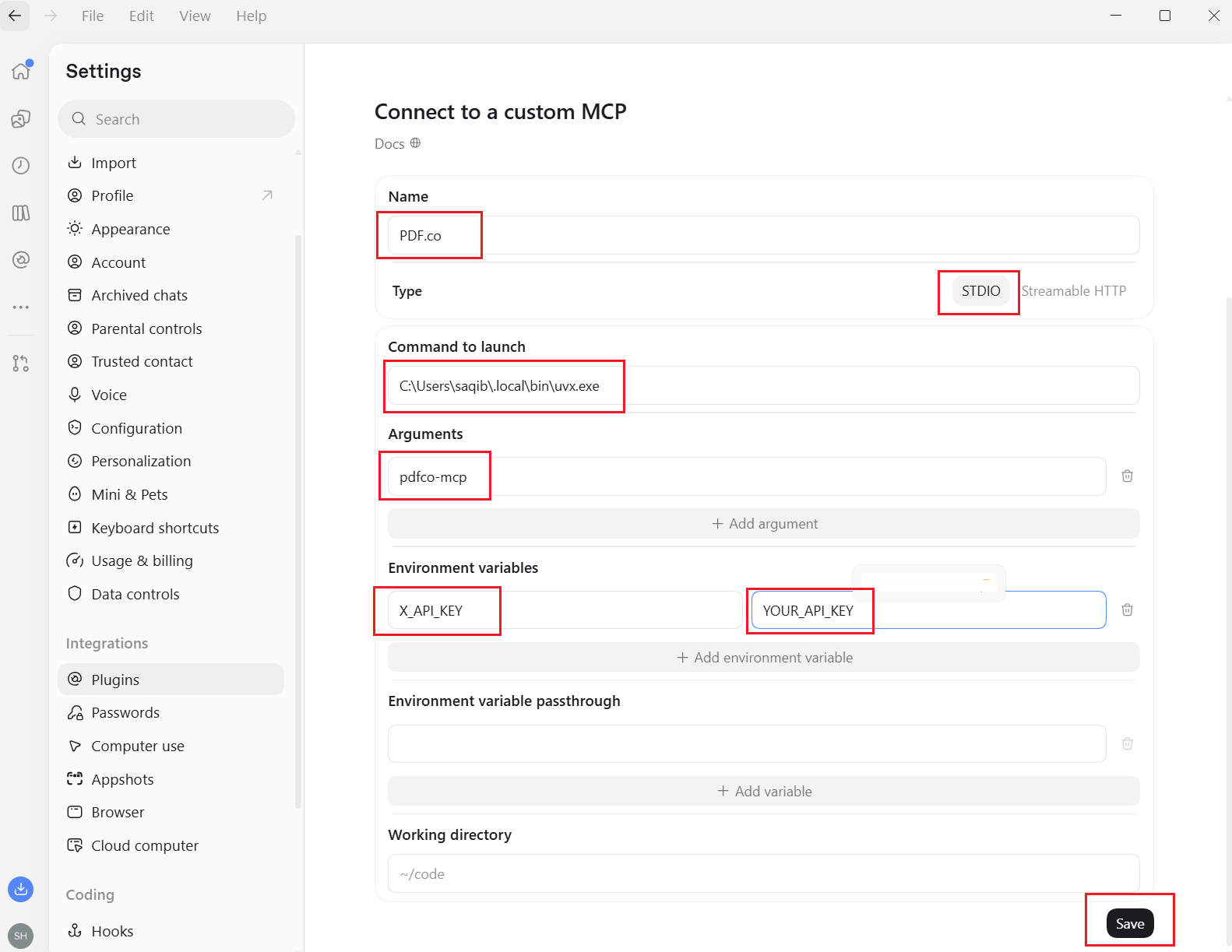 If environment variables are entered as text instead of separate name/value fields, enter `X_API_KEY=YOUR_PDFCO_API_KEY`, replacing the placeholder locally. The form saves the configuration; you do not need to edit a configuration file as well.
4. Save the server, then select **Restart** if offered.
5. Open a local **Work** or **Codex** chat and use `/mcp` to inspect the connected servers.
ChatGPT Work and Codex in the desktop app use the same local MCP setup, and Codex CLI shares the configuration on the same host. Reuse an existing `pdfco` entry when switching between them.
## Check that processing works
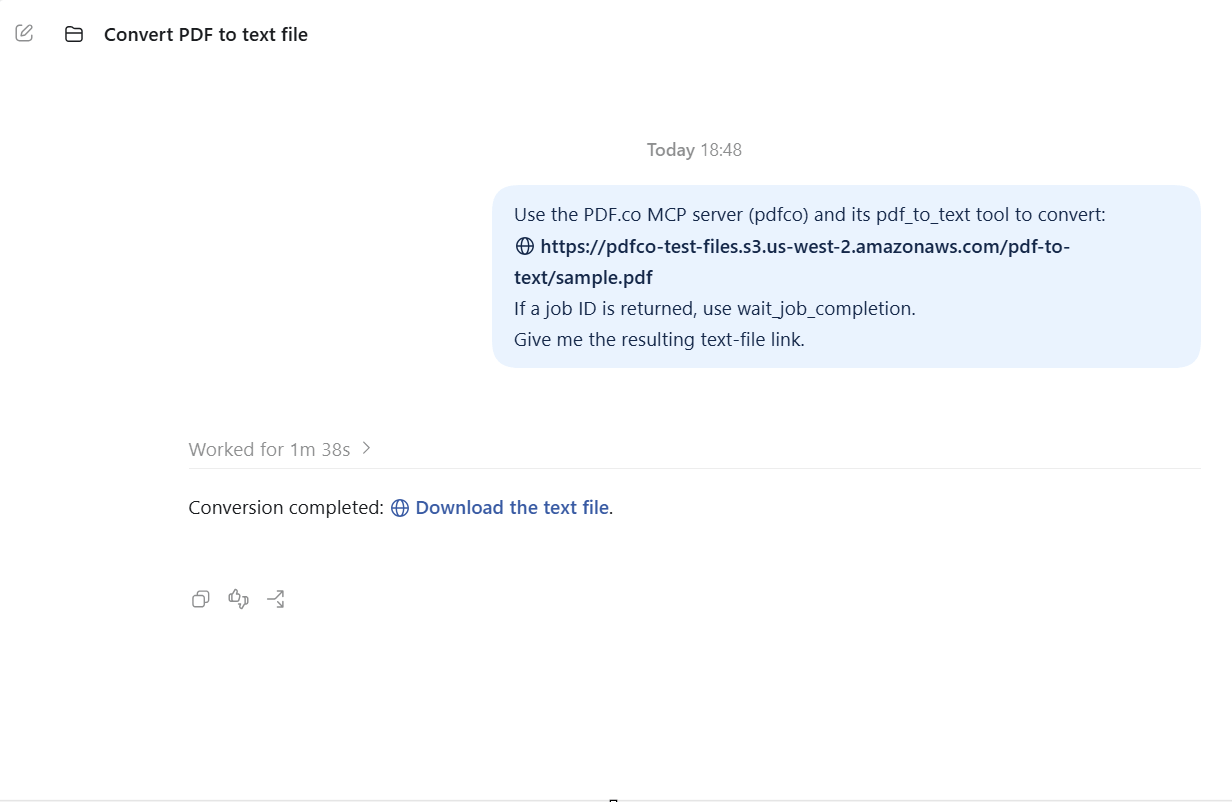
Confirm that `pdfco` exposes tools such as `pdf_to_text`, then send:
```text theme={null}
Use the PDF.co MCP server (pdfco) and its pdf_to_text tool to convert this PDF:
https://pdfco-test-files.s3.us-west-2.amazonaws.com/pdf-to-text/sample.pdf
If a job ID is returned, use wait_job_completion to wait for completion.
Give me the resulting text-file link.
```
Inspect the tool calls, wait for successful completion, and open the resulting file. Seeing the server in Settings alone does not verify that the API key or conversion works. See [Verify your connection](/api/mcp/overview#verify-your-connection).
If environment variables are entered as text instead of separate name/value fields, enter `X_API_KEY=YOUR_PDFCO_API_KEY`, replacing the placeholder locally. The form saves the configuration; you do not need to edit a configuration file as well.
4. Save the server, then select **Restart** if offered.
5. Open a local **Work** or **Codex** chat and use `/mcp` to inspect the connected servers.
ChatGPT Work and Codex in the desktop app use the same local MCP setup, and Codex CLI shares the configuration on the same host. Reuse an existing `pdfco` entry when switching between them.
## Check that processing works
Confirm that `pdfco` exposes tools such as `pdf_to_text`, then send:
```text theme={null}
Use the PDF.co MCP server (pdfco) and its pdf_to_text tool to convert this PDF:
https://pdfco-test-files.s3.us-west-2.amazonaws.com/pdf-to-text/sample.pdf
If a job ID is returned, use wait_job_completion to wait for completion.
Give me the resulting text-file link.
```
Inspect the tool calls, wait for successful completion, and open the resulting file. Seeing the server in Settings alone does not verify that the API key or conversion works. See [Verify your connection](/api/mcp/overview#verify-your-connection).
 ## Troubleshooting
* If the regular Chat view says to continue in Work or cannot access the local PDF.co tools, switch to **Work** or **Codex** and run the task on your local computer.
* If the command works in PowerShell but the app cannot start it, use the full executable path and restart the server.
* If the server is configured but tools are unavailable, check `/mcp`, the server's enabled state, and that the chat is running on the same local host.
* If tools load but processing fails, check the `X_API_KEY` environment entry and the tool's error response.
For client configuration details, see [OpenAI's MCP documentation](https://learn.chatgpt.com/docs/extend/mcp) and [choosing ChatGPT Work or Codex](https://learn.chatgpt.com/docs/use-chatgpt#compare-chatgpt-work-and-codex-on-desktop).
This documentation is built and hosted on [Mintlify](https://mintlify.com), a developer documentation platform.
## Troubleshooting
* If the regular Chat view says to continue in Work or cannot access the local PDF.co tools, switch to **Work** or **Codex** and run the task on your local computer.
* If the command works in PowerShell but the app cannot start it, use the full executable path and restart the server.
* If the server is configured but tools are unavailable, check `/mcp`, the server's enabled state, and that the chat is running on the same local host.
* If tools load but processing fails, check the `X_API_KEY` environment entry and the tool's error response.
For client configuration details, see [OpenAI's MCP documentation](https://learn.chatgpt.com/docs/extend/mcp) and [choosing ChatGPT Work or Codex](https://learn.chatgpt.com/docs/use-chatgpt#compare-chatgpt-work-and-codex-on-desktop).
This documentation is built and hosted on [Mintlify](https://mintlify.com), a developer documentation platform.