> ## Documentation Index
> Fetch the complete documentation index at: https://developer.pdf.co/llms.txt
> Use this file to discover all available pages before exploring further.
# Claude Desktop
> Connect Claude Desktop to PDF.co MCP on Windows using claude_desktop_config.json.
Connect the Windows Claude Desktop app to a local PDF.co MCP server. Complete the [shared prerequisites](/api/mcp/overview#before-you-start) first, including installing uv and getting your PDF.co API key.
## Open the configuration
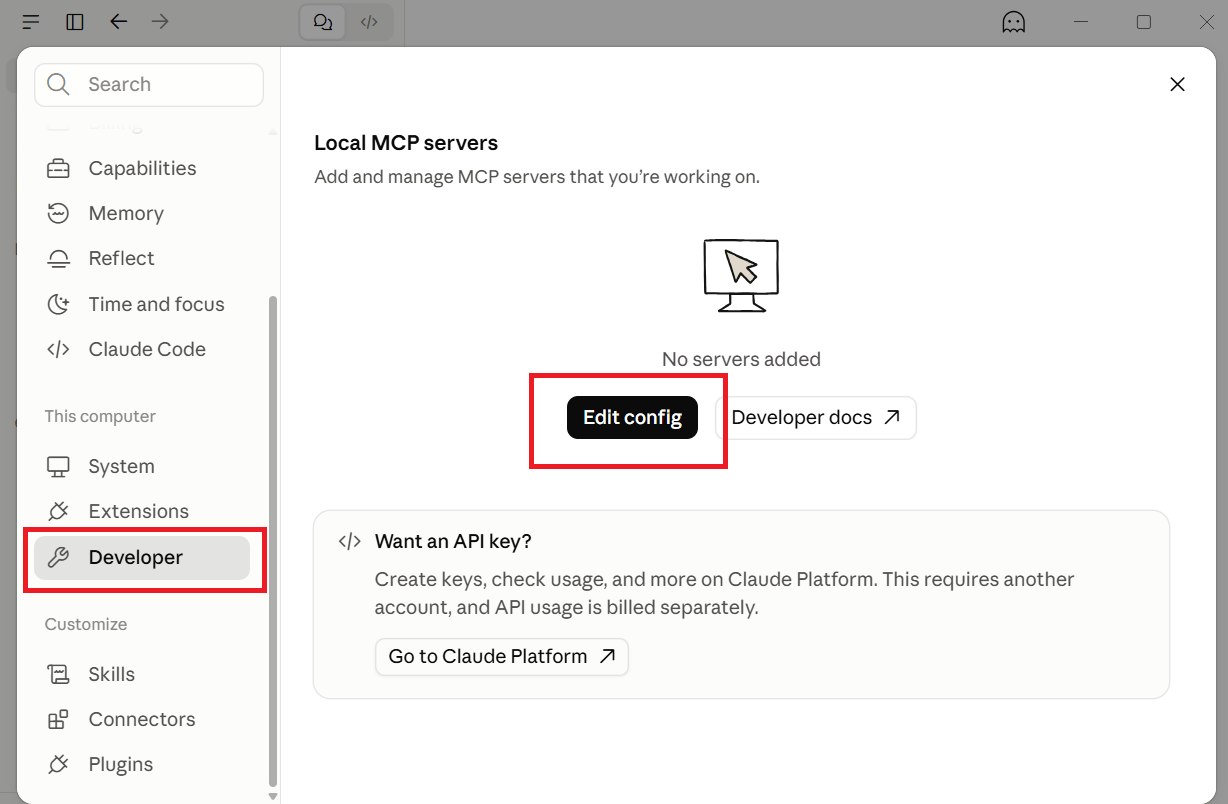
1. Open Claude Desktop's **Settings**.
2. Select **Developer**, then **Edit Config**.
3. Open `claude_desktop_config.json` in the location shown by the app. The standard Windows location is `%APPDATA%\Claude\claude_desktop_config.json`.
Use the app's **Edit Config** action to find the configuration used by your installation. The walkthrough screenshot below shows a Windows installation storing it under the app package's `LocalCache\Roaming\Claude` directory.
 ## Add PDF.co
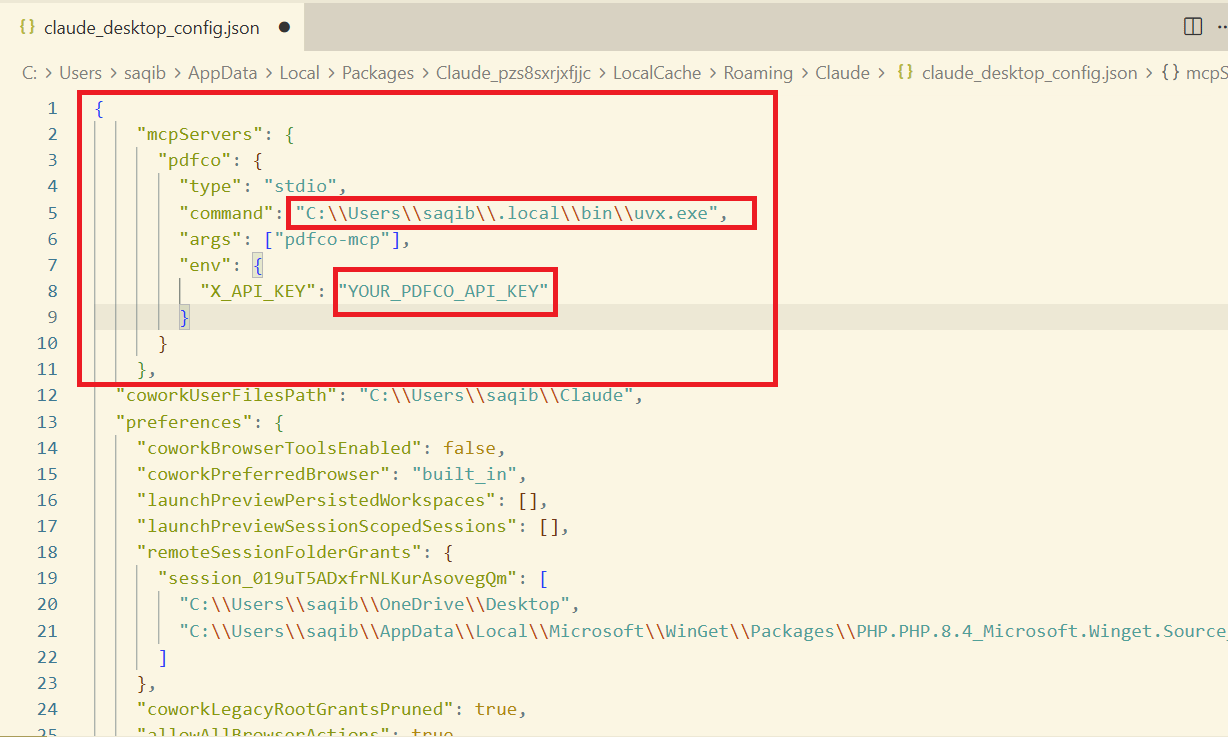
For a new configuration file, paste the following JSON. If the file already contains `mcpServers`, add the `pdfco` entry inside that object and preserve the other entries. If the file has other settings but no `mcpServers`, add `mcpServers` as a top-level property alongside those settings, keeping a comma between properties.
```json theme={null}
{
"mcpServers": {
"pdfco": {
"command": "C:\\Users\\YOUR_WINDOWS_USER\\.local\\bin\\uvx.exe",
"args": ["pdfco-mcp"],
"env": {
"X_API_KEY": "YOUR_PDFCO_API_KEY"
}
}
}
}
```
Replace `command` with the path returned by `(Get-Command uvx -ErrorAction Stop).Source`, keeping doubled backslashes in the JSON. Replace `YOUR_PDFCO_API_KEY` with your key from the [PDF.co dashboard](https://app.pdf.co/).
The command field contains only the executable path. `pdfco-mcp` is a separate argument. You do not need a server URL for this STDIO connection.
## Add PDF.co
For a new configuration file, paste the following JSON. If the file already contains `mcpServers`, add the `pdfco` entry inside that object and preserve the other entries. If the file has other settings but no `mcpServers`, add `mcpServers` as a top-level property alongside those settings, keeping a comma between properties.
```json theme={null}
{
"mcpServers": {
"pdfco": {
"command": "C:\\Users\\YOUR_WINDOWS_USER\\.local\\bin\\uvx.exe",
"args": ["pdfco-mcp"],
"env": {
"X_API_KEY": "YOUR_PDFCO_API_KEY"
}
}
}
}
```
Replace `command` with the path returned by `(Get-Command uvx -ErrorAction Stop).Source`, keeping doubled backslashes in the JSON. Replace `YOUR_PDFCO_API_KEY` with your key from the [PDF.co dashboard](https://app.pdf.co/).
The command field contains only the executable path. `pdfco-mcp` is a separate argument. You do not need a server URL for this STDIO connection.
 ## Restart and check the tools
1. Save the file and fully quit Claude Desktop, including its system-tray process if it is still running.
2. Reopen Claude Desktop and start a new chat.
3. Confirm that `pdfco` is running in **Settings > Developer**. In the chat, open **+ > Connectors**, select `pdfco`, and check its tool access.
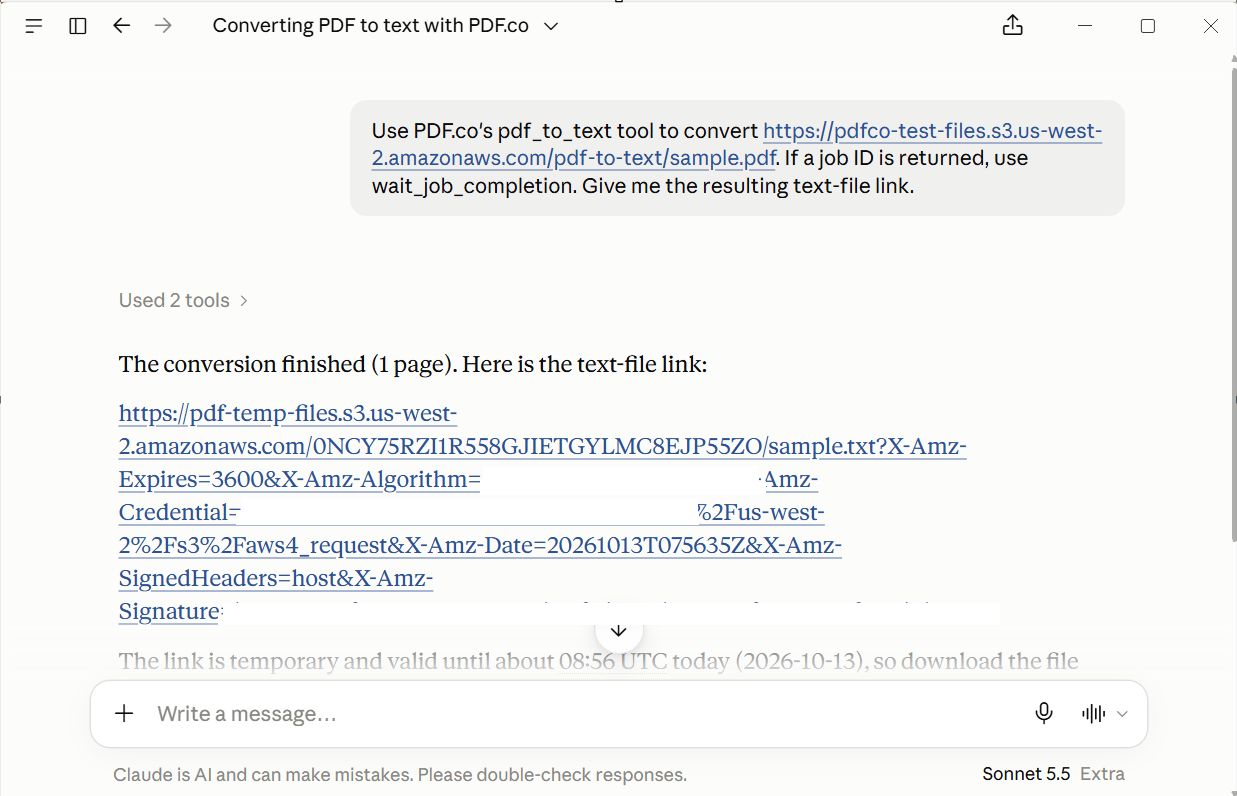
4. Send this prompt and approve the PDF.co tool calls when requested:
```text theme={null}
Use the PDF.co MCP server (pdfco) and its pdf_to_text tool to convert this PDF:
https://pdfco-test-files.s3.us-west-2.amazonaws.com/pdf-to-text/sample.pdf
If a job ID is returned, use wait_job_completion to wait for completion.
Give me the resulting text-file link.
```
Open the output file and confirm it contains text from the sample. See [Verify your connection](/api/mcp/overview#verify-your-connection) for the completion criteria.
## Restart and check the tools
1. Save the file and fully quit Claude Desktop, including its system-tray process if it is still running.
2. Reopen Claude Desktop and start a new chat.
3. Confirm that `pdfco` is running in **Settings > Developer**. In the chat, open **+ > Connectors**, select `pdfco`, and check its tool access.
4. Send this prompt and approve the PDF.co tool calls when requested:
```text theme={null}
Use the PDF.co MCP server (pdfco) and its pdf_to_text tool to convert this PDF:
https://pdfco-test-files.s3.us-west-2.amazonaws.com/pdf-to-text/sample.pdf
If a job ID is returned, use wait_job_completion to wait for completion.
Give me the resulting text-file link.
```
Open the output file and confirm it contains text from the sample. See [Verify your connection](/api/mcp/overview#verify-your-connection) for the completion criteria.
 ## Troubleshooting
### Claude does not select PDF.co automatically
Tool selection can vary by model. If Claude does not pick up PDF.co, explicitly ask it to use the **PDF.co MCP server (`pdfco`)** and name the required tool, such as `pdf_to_text`, as in the sample prompt above. This can also help after restarting the app.
### Server is running but Claude cannot find the tools
If Claude says it has no PDF.co connector or cannot use `pdf_to_text` even though the server is running:
1. In the chat, open **+ > Connectors > pdfco**.
2. Open **Tool access**.
3. Change the setting from loading tools only when needed to the option that keeps the tools loaded.
4. Send the sample conversion prompt again and approve the PDF.co tool calls when requested.
This setting resolved tool discovery during a Windows walkthrough. Use it when tools are not being picked up; server startup alone does not confirm that the tools are available in the chat. Menu wording may vary by Claude version.
### Other connection issues
* If `pdfco` is absent, confirm that you edited the file opened through **Edit Config**, saved valid JSON, and fully restarted the app.
* If the server cannot start, check the full `uvx.exe` path and the server's error output in Developer settings.
* If tools load but processing fails, check `X_API_KEY` and the PDF.co error returned by the tool.
For the general configuration workflow, see [Connect to local MCP servers](https://modelcontextprotocol.io/docs/develop/connect-local-servers).
This documentation is built and hosted on [Mintlify](https://mintlify.com), a developer documentation platform.
## Troubleshooting
### Claude does not select PDF.co automatically
Tool selection can vary by model. If Claude does not pick up PDF.co, explicitly ask it to use the **PDF.co MCP server (`pdfco`)** and name the required tool, such as `pdf_to_text`, as in the sample prompt above. This can also help after restarting the app.
### Server is running but Claude cannot find the tools
If Claude says it has no PDF.co connector or cannot use `pdf_to_text` even though the server is running:
1. In the chat, open **+ > Connectors > pdfco**.
2. Open **Tool access**.
3. Change the setting from loading tools only when needed to the option that keeps the tools loaded.
4. Send the sample conversion prompt again and approve the PDF.co tool calls when requested.
This setting resolved tool discovery during a Windows walkthrough. Use it when tools are not being picked up; server startup alone does not confirm that the tools are available in the chat. Menu wording may vary by Claude version.
### Other connection issues
* If `pdfco` is absent, confirm that you edited the file opened through **Edit Config**, saved valid JSON, and fully restarted the app.
* If the server cannot start, check the full `uvx.exe` path and the server's error output in Developer settings.
* If tools load but processing fails, check `X_API_KEY` and the PDF.co error returned by the tool.
For the general configuration workflow, see [Connect to local MCP servers](https://modelcontextprotocol.io/docs/develop/connect-local-servers).
This documentation is built and hosted on [Mintlify](https://mintlify.com), a developer documentation platform.