> ## Documentation Index
> Fetch the complete documentation index at: https://developer.pdf.co/llms.txt
> Use this file to discover all available pages before exploring further.
# Codex CLI
> Add PDF.co MCP from PowerShell and verify a conversion in Codex CLI on Windows.
Install [Codex CLI](https://learn.chatgpt.com/docs/codex/cli) using the **npm** tab in the installation instructions, then complete the [PDF.co MCP prerequisites](/api/mcp/overview#before-you-start).
These instructions use native Windows PowerShell, the npm-installed Codex CLI, and a local Codex session. The `codex.cmd` commands use npm's Windows launcher. If you already added `pdfco` through the [desktop app's Add MCP server form](/api/mcp/chatgpt-desktop#add-the-server) on the same host, skip configuration and continue with [Open a new session](#open-a-new-session).
## Add the server from PowerShell
Find your `uvx.exe` path:
```powershell theme={null}
(Get-Command uvx -ErrorAction Stop).Source
```
Replace the executable path below with that output. Replace only `YOUR_PDFCO_API_KEY` with your PDF.co API key, keeping the `X_API_KEY=` prefix:
```powershell theme={null}
codex.cmd mcp add pdfco --env "X_API_KEY=YOUR_PDFCO_API_KEY" -- "C:\Users\YOUR_WINDOWS_USER\.local\bin\uvx.exe" pdfco-mcp
```
The `--env` argument must be in `KEY=VALUE` form. The server reads the key from the environment variable named `X_API_KEY`.
 The command saves the server in `%USERPROFILE%\.codex\config.toml`, or in `CODEX_HOME` if you set a custom location. The desktop app and CLI share settings on the same Codex host; configure `pdfco` only once.
## Open a new session
Check that `pdfco` is listed as enabled, then start Codex:
```powershell theme={null}
codex.cmd mcp list
codex.cmd
```
In the new Codex session, enter `/mcp` to inspect the active servers and PDF.co tools. `codex.cmd mcp list` confirms configuration; the active connection and a real tool call confirm that the server works.
## Run a sample conversion
```text theme={null}
Use the PDF.co MCP server (pdfco) and its pdf_to_text tool to convert this PDF:
https://pdfco-test-files.s3.us-west-2.amazonaws.com/pdf-to-text/sample.pdf
If a job ID is returned, use wait_job_completion to wait for completion.
Give me the resulting text-file link.
```
The command saves the server in `%USERPROFILE%\.codex\config.toml`, or in `CODEX_HOME` if you set a custom location. The desktop app and CLI share settings on the same Codex host; configure `pdfco` only once.
## Open a new session
Check that `pdfco` is listed as enabled, then start Codex:
```powershell theme={null}
codex.cmd mcp list
codex.cmd
```
In the new Codex session, enter `/mcp` to inspect the active servers and PDF.co tools. `codex.cmd mcp list` confirms configuration; the active connection and a real tool call confirm that the server works.
## Run a sample conversion
```text theme={null}
Use the PDF.co MCP server (pdfco) and its pdf_to_text tool to convert this PDF:
https://pdfco-test-files.s3.us-west-2.amazonaws.com/pdf-to-text/sample.pdf
If a job ID is returned, use wait_job_completion to wait for completion.
Give me the resulting text-file link.
```
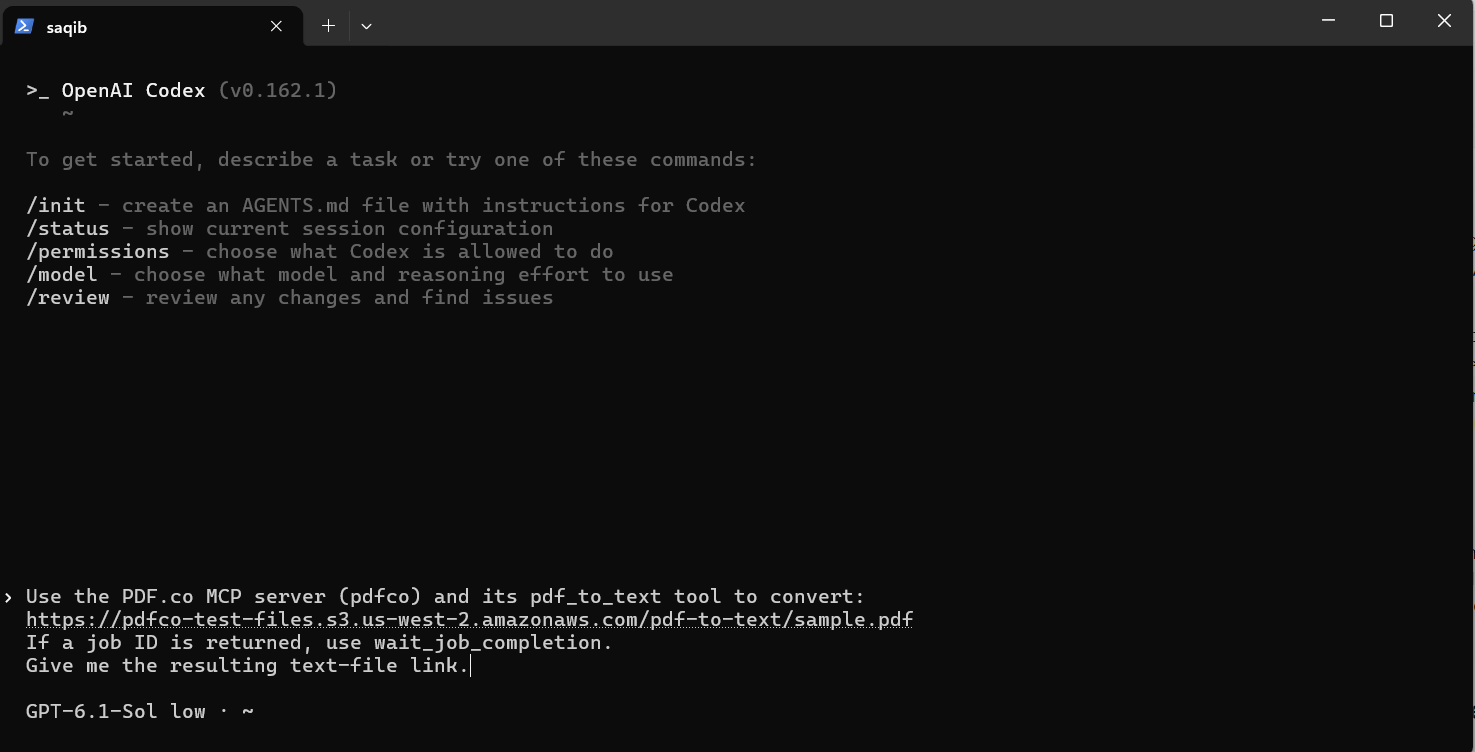 Approve the tool calls when requested, inspect the final job result, and open the text file. See [Verify your connection](/api/mcp/overview#verify-your-connection).
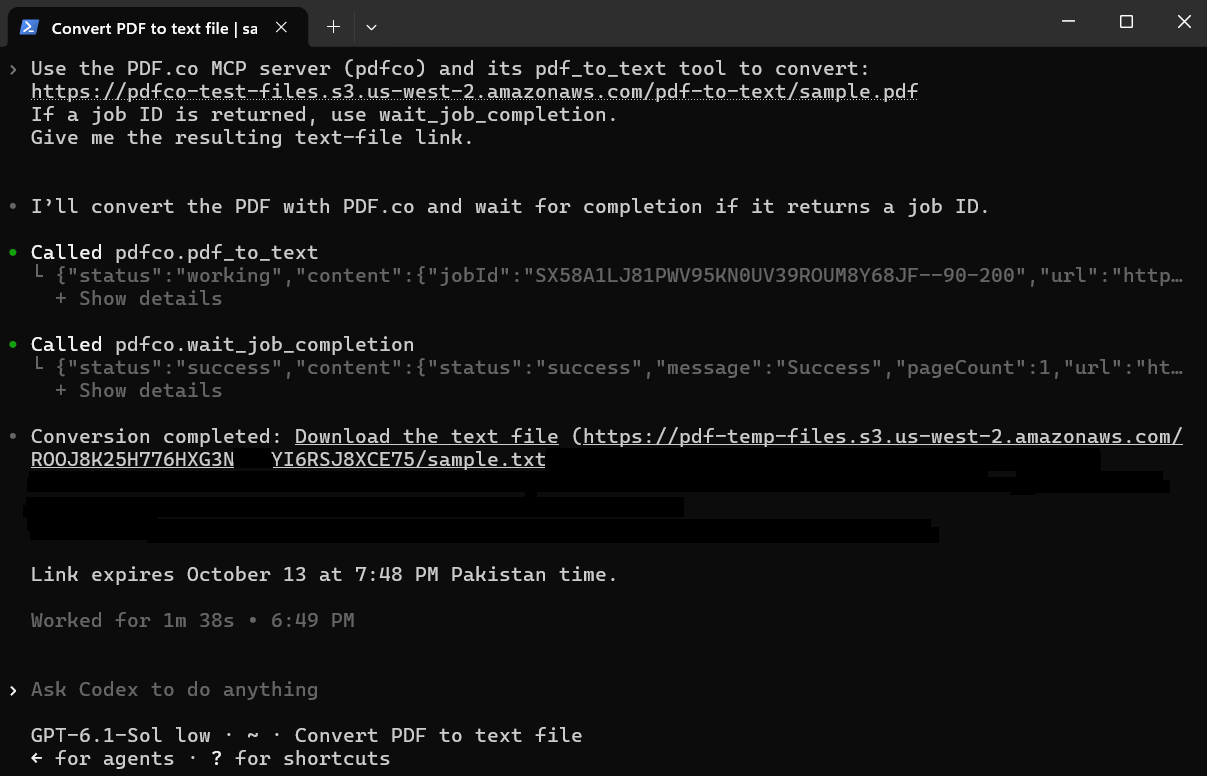 Close and reopen Codex CLI, then repeat the prompt to check that the saved configuration still works.
## Troubleshooting
* If `mcp add` reports that environment entries must be in `KEY=VALUE` form, keep `X_API_KEY=` before your key inside the quoted `--env` argument. A key by itself is not a valid argument.
* If the configuration cannot be parsed, check that `mcp_servers.pdfco` and its `env` table each appear only once.
* If the server cannot start, check the absolute path to `uvx.exe` and inspect the startup error shown by Codex.
* If settings differ between projects, check for project-level `.codex/config.toml` overrides.
* If tools load but processing fails, inspect the PDF.co error response and check the API key.
See [OpenAI's MCP documentation](https://learn.chatgpt.com/docs/extend/mcp?surface=cli) for configuration options.
This documentation is built and hosted on [Mintlify](https://mintlify.com), a developer documentation platform.
Close and reopen Codex CLI, then repeat the prompt to check that the saved configuration still works.
## Troubleshooting
* If `mcp add` reports that environment entries must be in `KEY=VALUE` form, keep `X_API_KEY=` before your key inside the quoted `--env` argument. A key by itself is not a valid argument.
* If the configuration cannot be parsed, check that `mcp_servers.pdfco` and its `env` table each appear only once.
* If the server cannot start, check the absolute path to `uvx.exe` and inspect the startup error shown by Codex.
* If settings differ between projects, check for project-level `.codex/config.toml` overrides.
* If tools load but processing fails, inspect the PDF.co error response and check the API key.
See [OpenAI's MCP documentation](https://learn.chatgpt.com/docs/extend/mcp?surface=cli) for configuration options.
This documentation is built and hosted on [Mintlify](https://mintlify.com), a developer documentation platform.