> ## Documentation Index
> Fetch the complete documentation index at: https://developer.pdf.co/llms.txt
> Use this file to discover all available pages before exploring further.
# Cursor
> Install PDF.co MCP in Cursor with an installation link, or configure it manually on Windows.
Install Cursor and complete the [PDF.co MCP prerequisites](/api/mcp/overview#before-you-start).
## Install with one click (recommended)
Install PDF.co in Cursor
1. Open the installation link above and allow your browser to open Cursor.
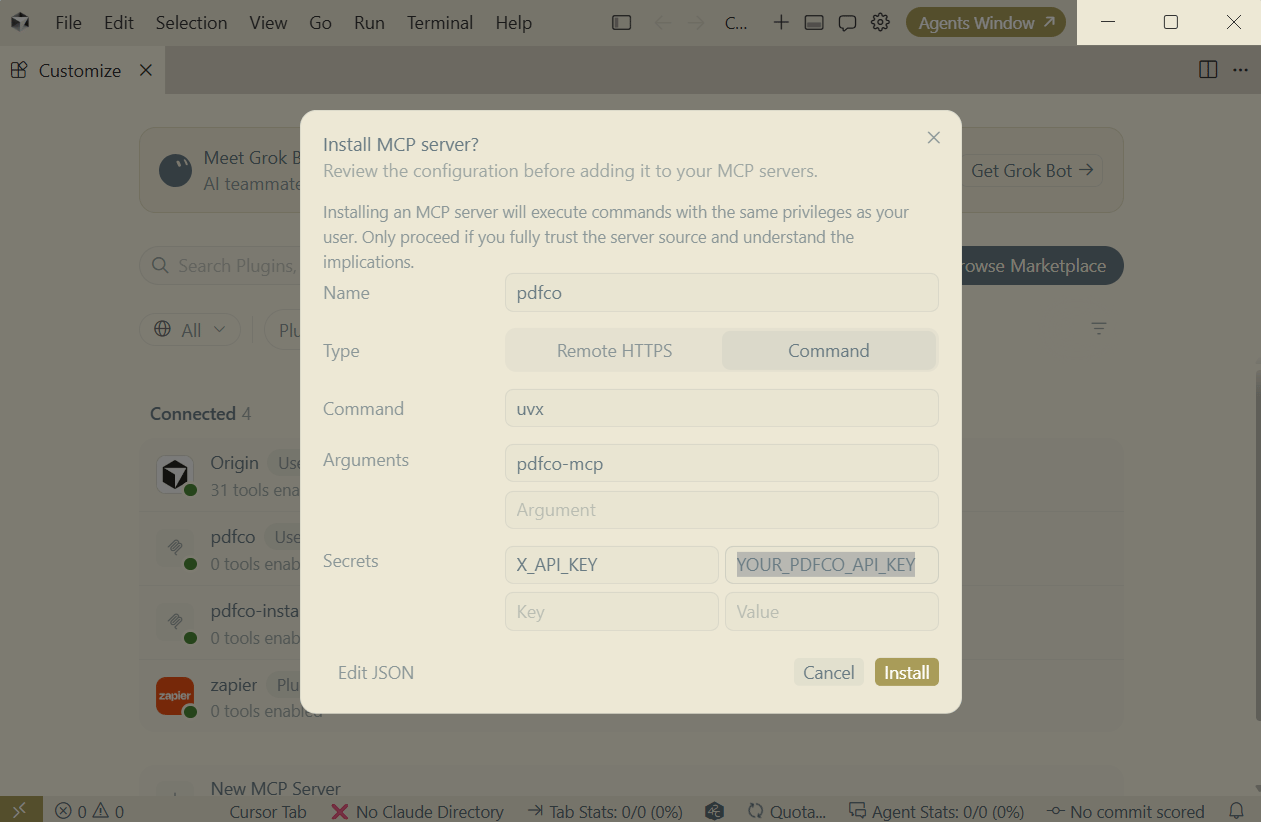
2. Review the server: **Name** `pdfco`, **Type** Command, **Command** `uvx`, and **Arguments** `pdfco-mcp`.
3. Under **Secrets**, replace `YOUR_PDFCO_API_KEY` with your key from the [PDF.co dashboard](https://app.pdf.co/). Keep the variable name `X_API_KEY`.
4. Select **Install**, then continue with [Connect and check the tools](#connect-and-check-the-tools).
5. [Run a sample conversion](#run-a-sample-conversion) to verify that PDF.co can process a file.
Replace `YOUR_PDFCO_API_KEY` under **Secrets** in the installation dialog **before selecting Install**. Keep the variable name `X_API_KEY`. The placeholder will not authorize PDF.co conversions.
 If `pdfco` is already configured, reuse that entry and continue with the connection check.
Copy this URL into Chrome or Edge's address bar, press Enter, and select **Open Cursor** when prompted:
```text theme={null}
cursor://anysphere.cursor-deeplink/mcp/install?name=pdfco&config=eyJ0eXBlIjoic3RkaW8iLCJjb21tYW5kIjoidXZ4IiwiYXJncyI6WyJwZGZjby1tY3AiXSwiZW52Ijp7IlhfQVBJX0tFWSI6IllPVVJfUERGQ09fQVBJX0tFWSJ9fQ%3D%3D
```
The link uses `uvx` from your PATH. If Cursor cannot find it, use the full executable path from the prerequisites or follow the manual setup below.
## Manual setup
### Open your MCP configuration
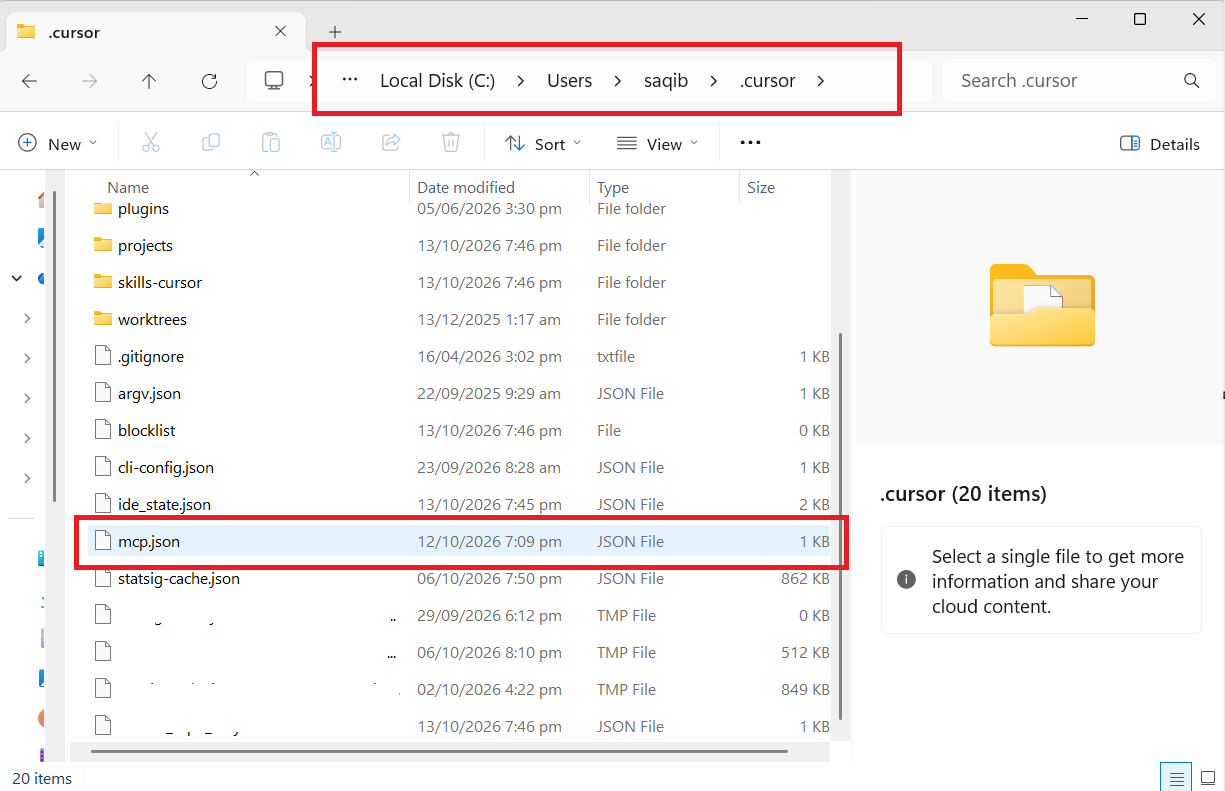
Use `%USERPROFILE%\.cursor\mcp.json` to make PDF.co available across your projects. Create the `.cursor` directory and `mcp.json` file if needed.
If `pdfco` is already configured, reuse that entry and continue with the connection check.
Copy this URL into Chrome or Edge's address bar, press Enter, and select **Open Cursor** when prompted:
```text theme={null}
cursor://anysphere.cursor-deeplink/mcp/install?name=pdfco&config=eyJ0eXBlIjoic3RkaW8iLCJjb21tYW5kIjoidXZ4IiwiYXJncyI6WyJwZGZjby1tY3AiXSwiZW52Ijp7IlhfQVBJX0tFWSI6IllPVVJfUERGQ09fQVBJX0tFWSJ9fQ%3D%3D
```
The link uses `uvx` from your PATH. If Cursor cannot find it, use the full executable path from the prerequisites or follow the manual setup below.
## Manual setup
### Open your MCP configuration
Use `%USERPROFILE%\.cursor\mcp.json` to make PDF.co available across your projects. Create the `.cursor` directory and `mcp.json` file if needed.
 ### Add PDF.co
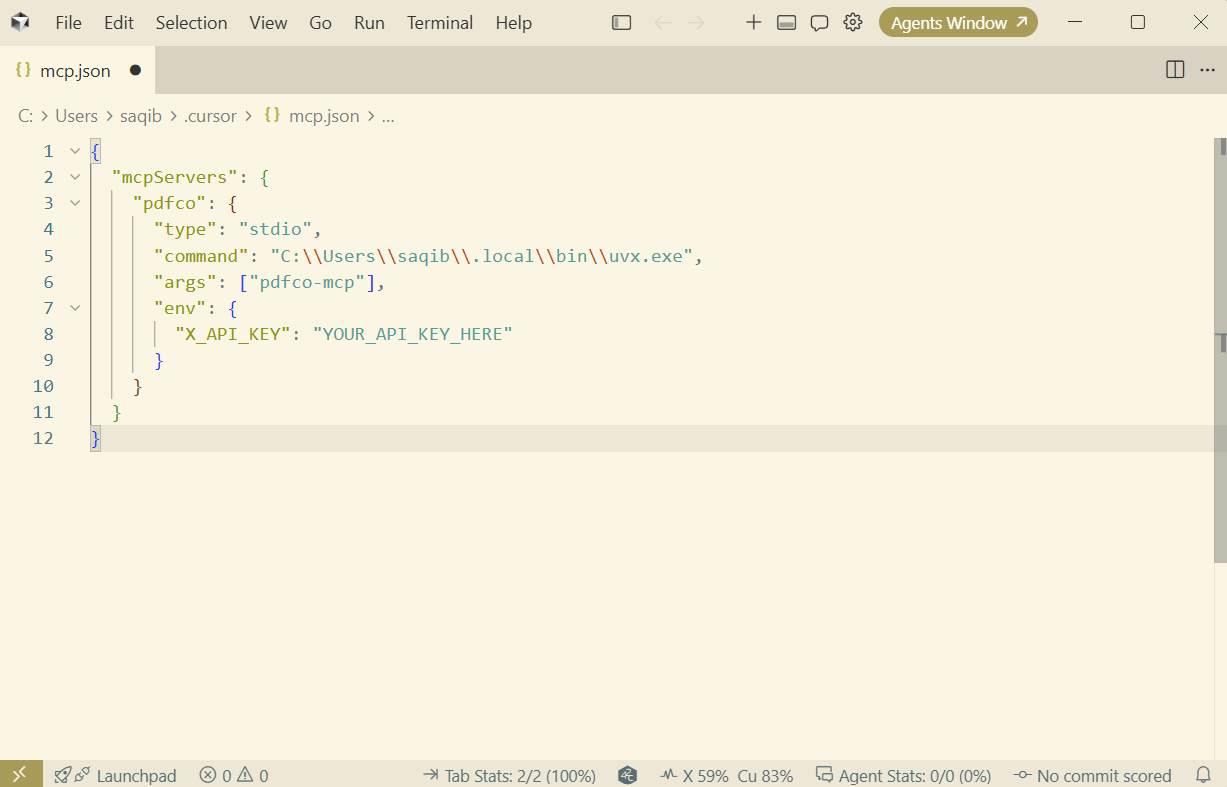
For a new file, paste the following configuration. For an existing file, merge `pdfco` into `mcpServers` and preserve the other servers:
```json theme={null}
{
"mcpServers": {
"pdfco": {
"type": "stdio",
"command": "C:\\Users\\YOUR_WINDOWS_USER\\.local\\bin\\uvx.exe",
"args": ["pdfco-mcp"],
"env": {
"X_API_KEY": "YOUR_PDFCO_API_KEY"
}
}
}
}
```
Replace the command with the path returned by `(Get-Command uvx -ErrorAction Stop).Source`, using doubled backslashes in JSON. Replace the API-key placeholder locally.
### Add PDF.co
For a new file, paste the following configuration. For an existing file, merge `pdfco` into `mcpServers` and preserve the other servers:
```json theme={null}
{
"mcpServers": {
"pdfco": {
"type": "stdio",
"command": "C:\\Users\\YOUR_WINDOWS_USER\\.local\\bin\\uvx.exe",
"args": ["pdfco-mcp"],
"env": {
"X_API_KEY": "YOUR_PDFCO_API_KEY"
}
}
}
}
```
Replace the command with the path returned by `(Get-Command uvx -ErrorAction Stop).Source`, using doubled backslashes in JSON. Replace the API-key placeholder locally.
 Save the file and reopen Cursor.
## Connect and check the tools
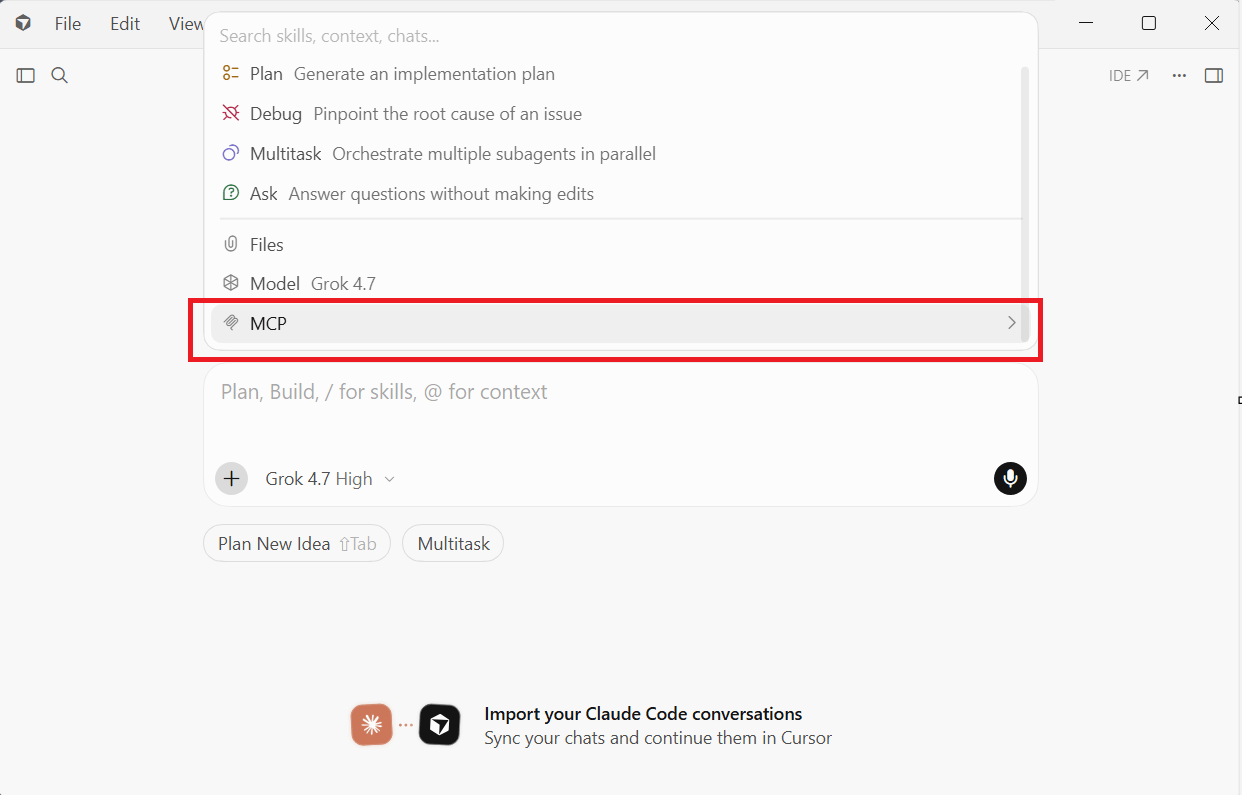
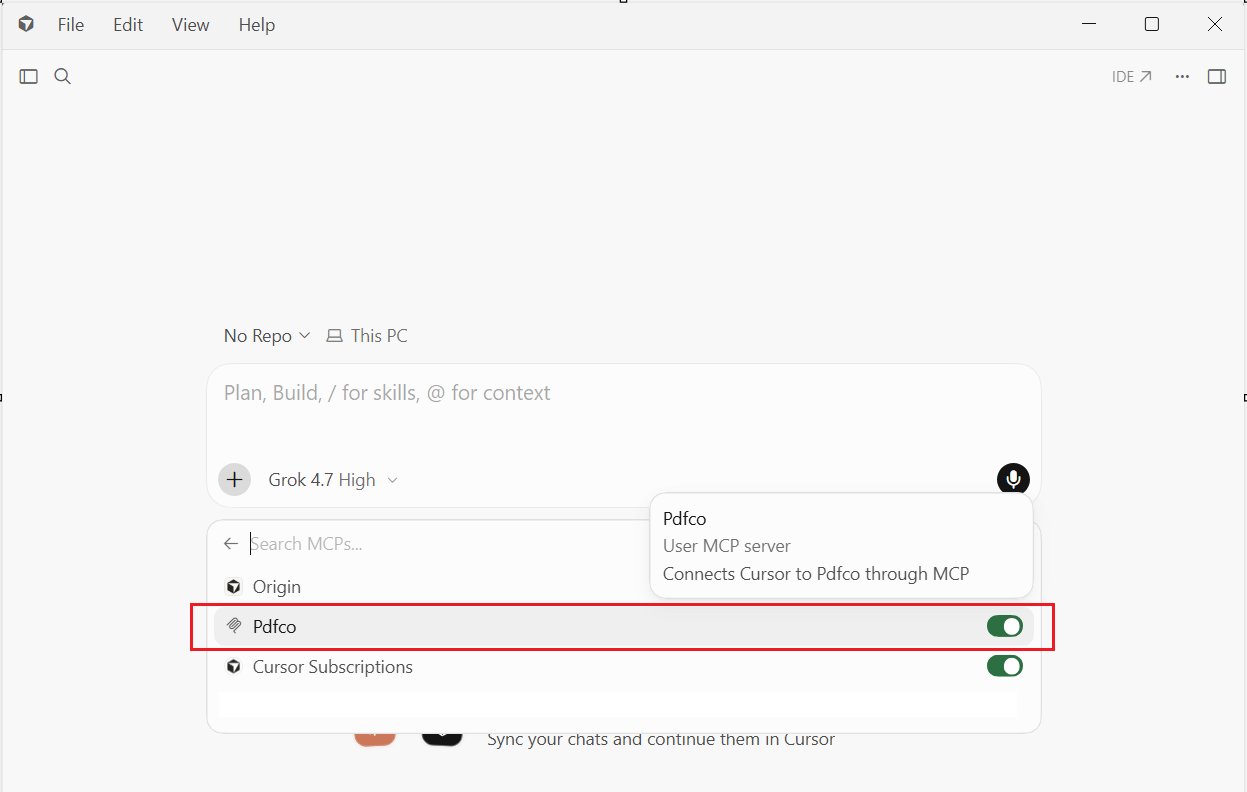
1. Open a local chat. Select **+ > MCP** in the chat composer.
2. Find **Pdfco** and turn its toggle on if it is disabled. In versions with a **Customize** page, you can also manage the server there.
Save the file and reopen Cursor.
## Connect and check the tools
1. Open a local chat. Select **+ > MCP** in the chat composer.
2. Find **Pdfco** and turn its toggle on if it is disabled. In versions with a **Customize** page, you can also manage the server there.
 ## Run a sample conversion
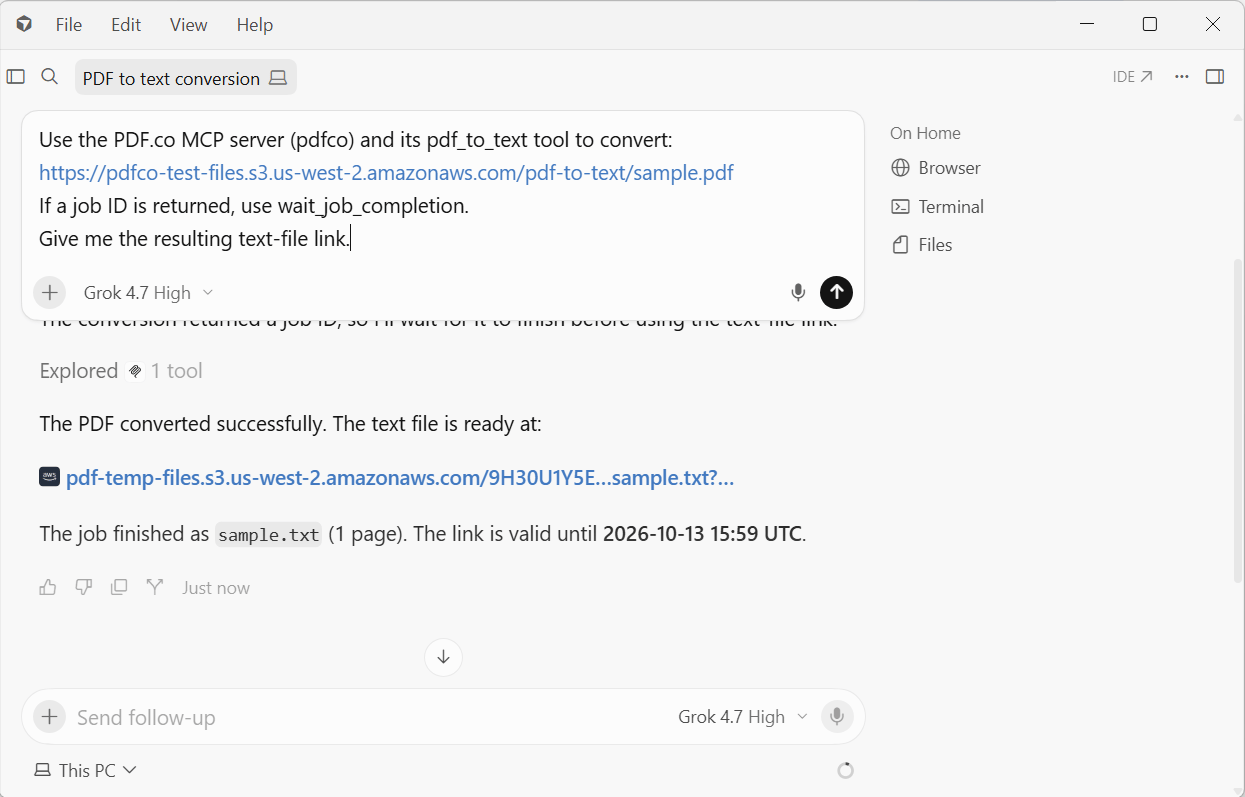
Send the following prompt in the local chat:
```text theme={null}
Use the PDF.co MCP server (pdfco) and its pdf_to_text tool to convert this PDF:
https://pdfco-test-files.s3.us-west-2.amazonaws.com/pdf-to-text/sample.pdf
If a job ID is returned, use wait_job_completion to wait for completion.
Give me the resulting text-file link.
```
Approve the calls when requested and open the final text file. Check that processing succeeded, not just that the server appeared in the tool list. See [Verify your connection](/api/mcp/overview#verify-your-connection).
## Run a sample conversion
Send the following prompt in the local chat:
```text theme={null}
Use the PDF.co MCP server (pdfco) and its pdf_to_text tool to convert this PDF:
https://pdfco-test-files.s3.us-west-2.amazonaws.com/pdf-to-text/sample.pdf
If a job ID is returned, use wait_job_completion to wait for completion.
Give me the resulting text-file link.
```
Approve the calls when requested and open the final text file. Check that processing succeeded, not just that the server appeared in the tool list. See [Verify your connection](/api/mcp/overview#verify-your-connection).
 ## Troubleshooting
* If the server is absent, check which configuration location you edited and that the JSON is valid.
* If the server is configured but the chat does not use its tools, open **+ > MCP**, check that **Pdfco** is enabled, and explicitly name the PDF.co MCP in your prompt.
* If it cannot start, check the executable path and server output. `pdfco-mcp` must be an argument, not part of the executable path.
* If tools are available but conversion fails, check `X_API_KEY` and the PDF.co error response.
For configuration and tool controls, see [Cursor's MCP documentation](https://cursor.com/docs/mcp).
This documentation is built and hosted on [Mintlify](https://mintlify.com), a developer documentation platform.
## Troubleshooting
* If the server is absent, check which configuration location you edited and that the JSON is valid.
* If the server is configured but the chat does not use its tools, open **+ > MCP**, check that **Pdfco** is enabled, and explicitly name the PDF.co MCP in your prompt.
* If it cannot start, check the executable path and server output. `pdfco-mcp` must be an argument, not part of the executable path.
* If tools are available but conversion fails, check `X_API_KEY` and the PDF.co error response.
For configuration and tool controls, see [Cursor's MCP documentation](https://cursor.com/docs/mcp).
This documentation is built and hosted on [Mintlify](https://mintlify.com), a developer documentation platform.