

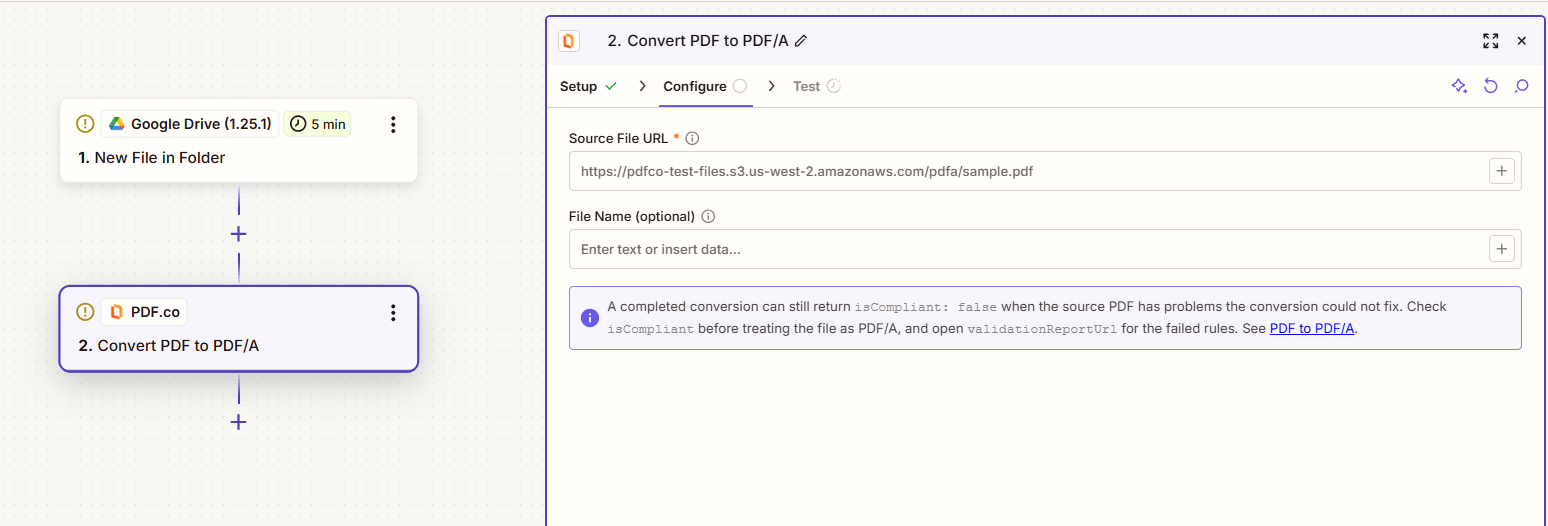
Input
Example: Archive a PDF
- Add a PDF.co action after the step that provides your PDF.
- Select Convert PDF to PDF/A and connect your PDF.co account. See Getting Started with Zapier for connection instructions.
-
Map the PDF link from the previous step to Source File URL. To try a sample, use:
-
Set File Name (optional) to
archived-document.pdfand test the action. -
Add Filter by Zapier after the conversion. Continue only when
isCompliantistrue. -
Map
urlto your storage app’s upload step to save the PDF before its temporary link expires. You can also save the JSON report fromvalidationReportUrl.
This action is available in PDF.co app version 4.1.0 and later. If it is missing from an existing Zap, select the current PDF.co app version for that step.
Output
Timeouts and validation
Published Zaps receive the result through a callback and resume when processing finishes. A job that times out in the editor may still complete in a published Zap. If conversion completes but the document is not compliant, the step can still succeed withisCompliant: false. Use the filter in the example to keep that document out of your archive, then review the validation report to see what needs attention.
If conversion or validation cannot complete, the step can fail and one or both file links may be unavailable. The error includes a Validation report: link when a report is available.
Save the converted PDF and report to your own storage before their temporary links expire. See the PDF to PDF/A API reference for validation details and file-retention limits.
To create a Factur-X or ZUGFeRD invoice with embedded XML, use Convert PDF to E-Invoice.