

Choose Work or Codex
ChatGPT and Codex are available in the same desktop app. To use the local PDF.co MCP server, choose either of these routes:- Select ChatGPT, then switch from Chat to the Work tab.
- Select Codex in the app’s product selector and open a local task.
Add the server
- Open Settings > Plugins.
- Open the Add dropdown and select Add MCP server.
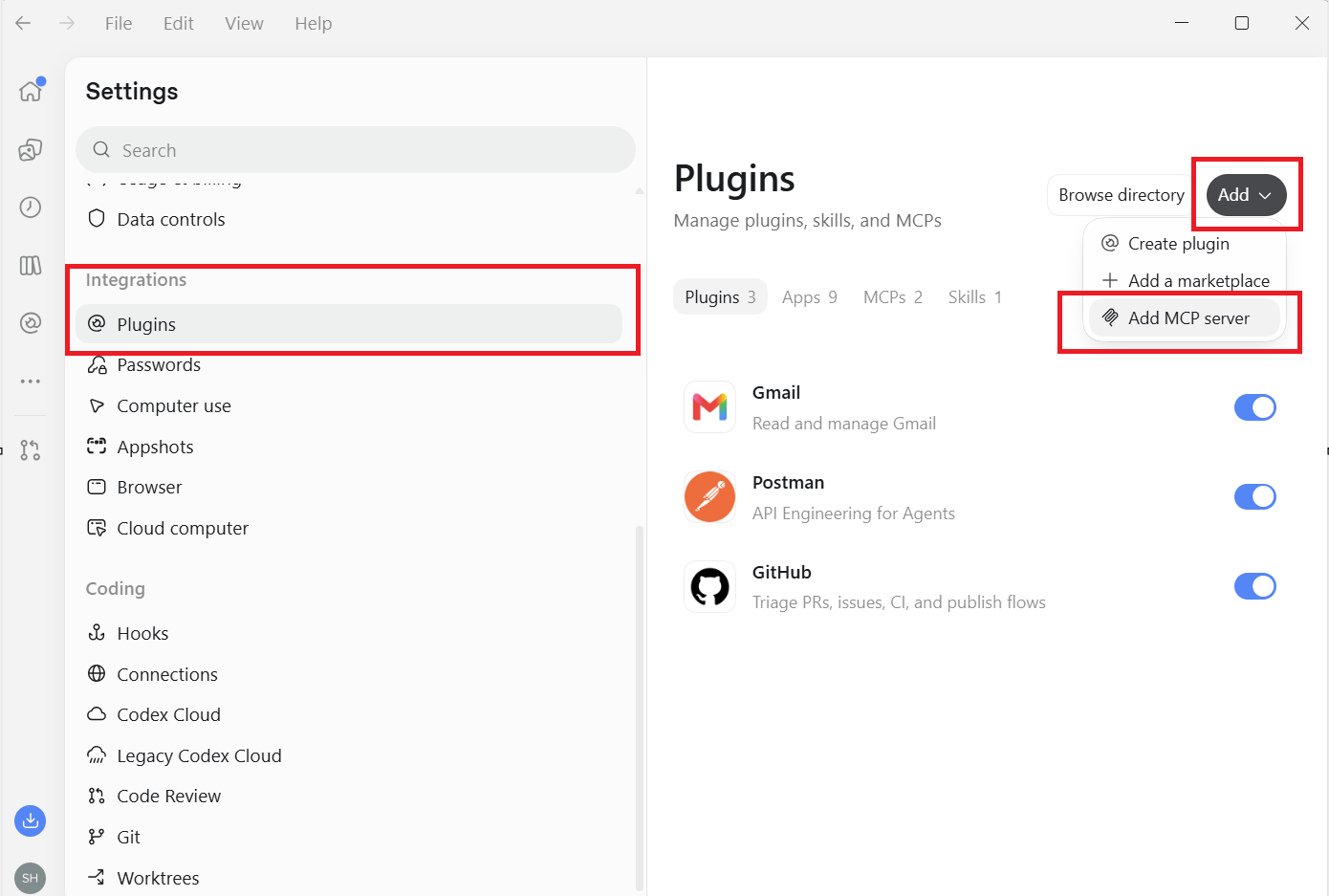
Add an MCP server from the Plugins settings page.
- In Connect to a custom MCP, enter the following values:
Paste the executable path into the command field without JSON escaping or extra quotes. Keep
pdfco-mcp in the arguments field. This connection uses an environment variable for authentication, so it does not require a server URL or OAuth sign-in.
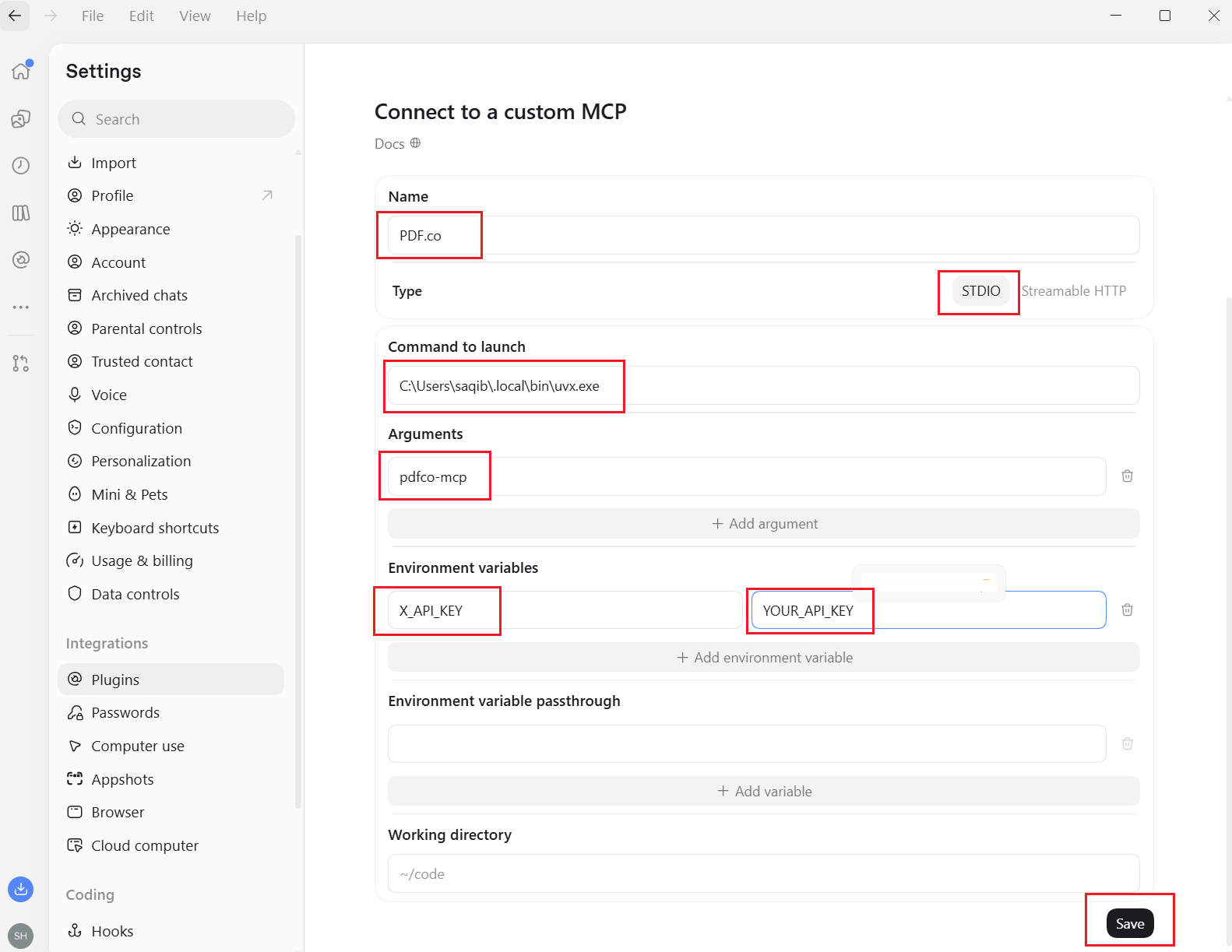
The STDIO form with the executable path, package argument, and an API-key placeholder. Use pdfco as the Name to match this guide's examples.
X_API_KEY=YOUR_PDFCO_API_KEY, replacing the placeholder locally. The form saves the configuration; you do not need to edit a configuration file as well.
- Save the server, then select Restart if offered.
- Open a local Work or Codex chat and use
/mcpto inspect the connected servers.
pdfco entry when switching between them.
Check that processing works
Confirm thatpdfco exposes tools such as pdf_to_text, then send:
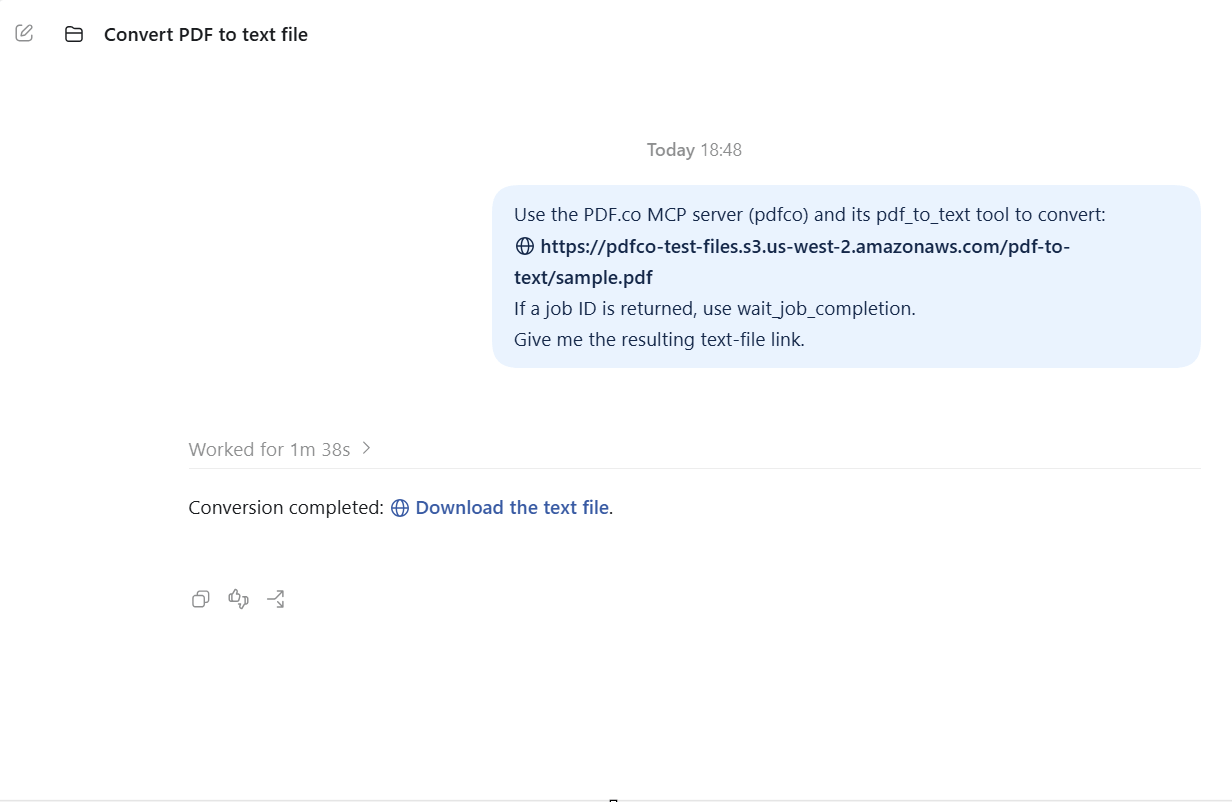
The sample prompt and a completed conversion in the desktop app.
Troubleshooting
- If the regular Chat view says to continue in Work or cannot access the local PDF.co tools, switch to Work or Codex and run the task on your local computer.
- If the command works in PowerShell but the app cannot start it, use the full executable path and restart the server.
- If the server is configured but tools are unavailable, check
/mcp, the server’s enabled state, and that the chat is running on the same local host. - If tools load but processing fails, check the
X_API_KEYenvironment entry and the tool’s error response.