

Install with one click (recommended)
Install PDF.co in Cursor- Open the installation link above and allow your browser to open Cursor.
- Review the server: Name
pdfco, Type Command, Commanduvx, and Argumentspdfco-mcp. - Under Secrets, replace
YOUR_PDFCO_API_KEYwith your key from the PDF.co dashboard. Keep the variable nameX_API_KEY. - Select Install, then continue with Connect and check the tools.
- Run a sample conversion to verify that PDF.co can process a file.
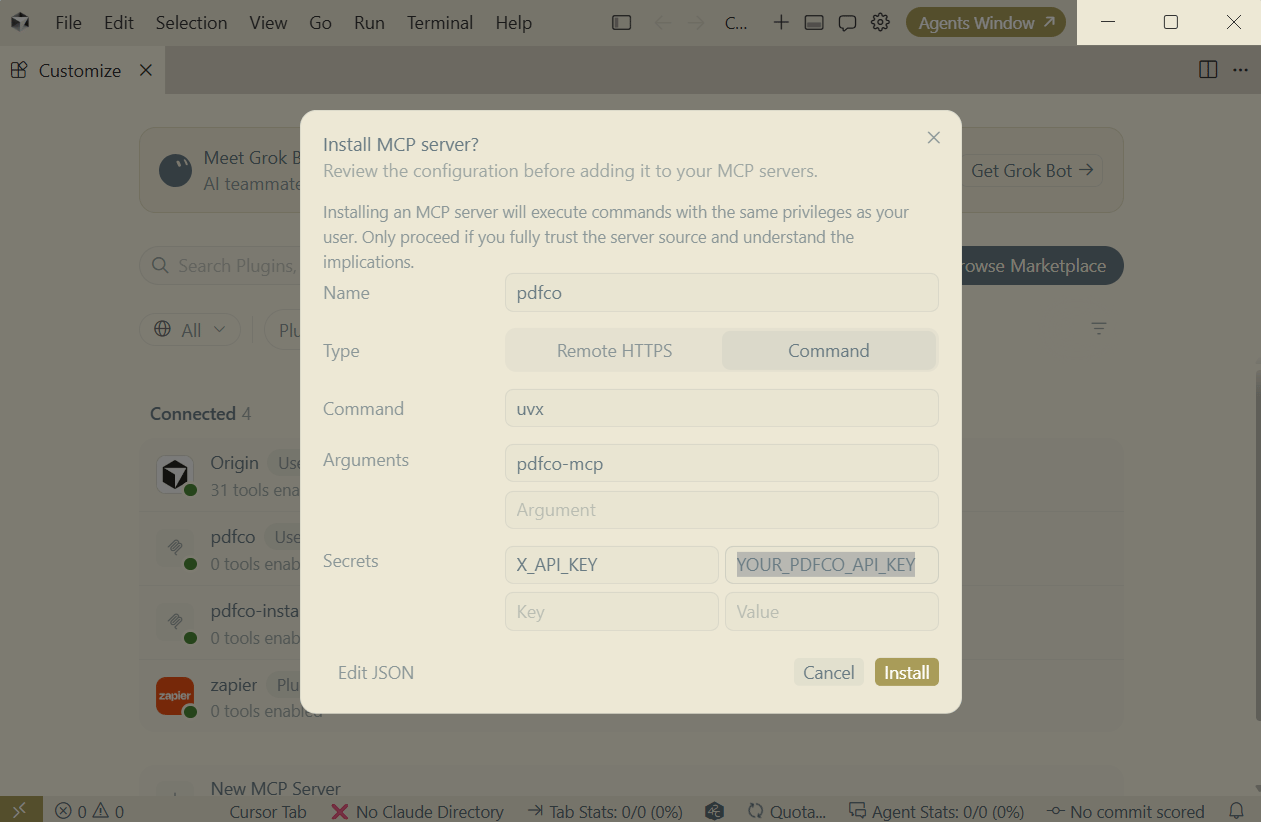
Replace the placeholder under Secrets before installing PDF.co.
pdfco is already configured, reuse that entry and continue with the connection check.
If the installation link does not open Cursor
If the installation link does not open Cursor
Copy this URL into Chrome or Edge’s address bar, press Enter, and select Open Cursor when prompted:
uvx from your PATH. If Cursor cannot find it, use the full executable path from the prerequisites or follow the manual setup below.
Manual setup
Open your MCP configuration
Use%USERPROFILE%\.cursor\mcp.json to make PDF.co available across your projects. Create the .cursor directory and mcp.json file if needed.
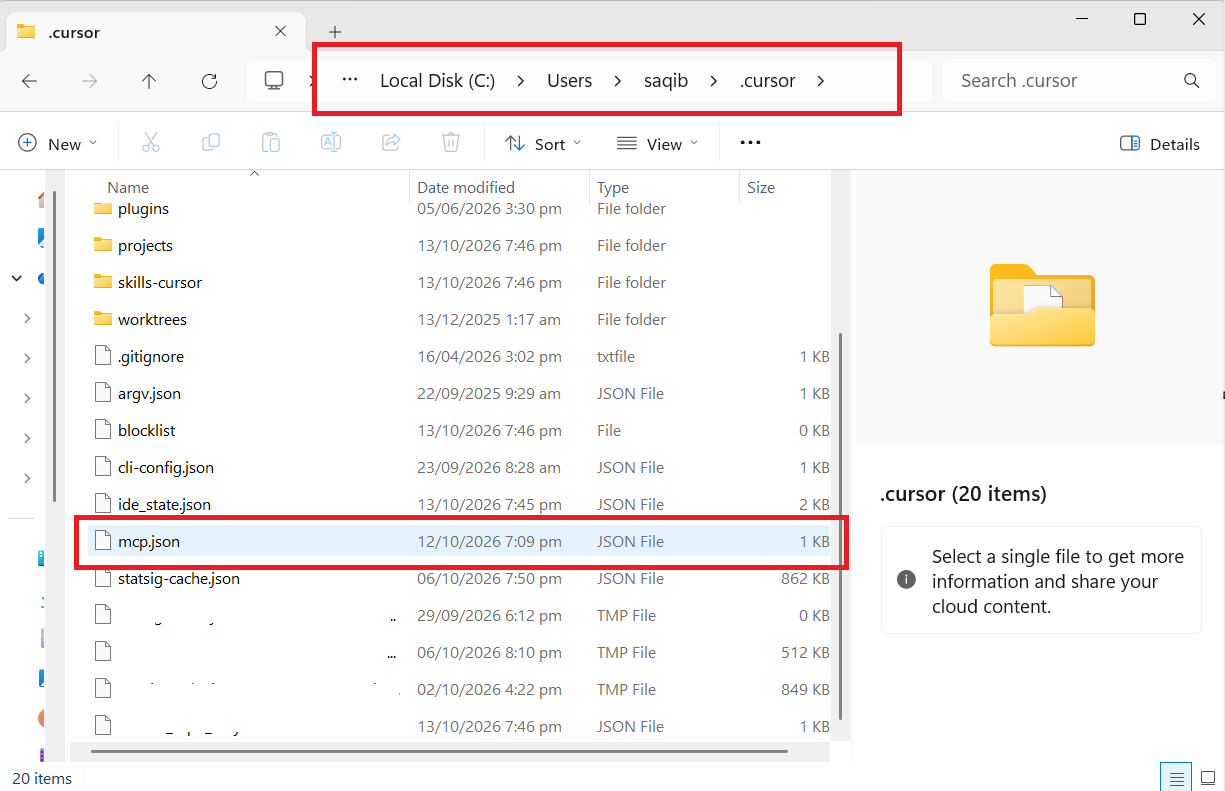
The personal MCP configuration in the Windows user folder.
Add PDF.co
For a new file, paste the following configuration. For an existing file, mergepdfco into mcpServers and preserve the other servers:
(Get-Command uvx -ErrorAction Stop).Source, using doubled backslashes in JSON. Replace the API-key placeholder locally.
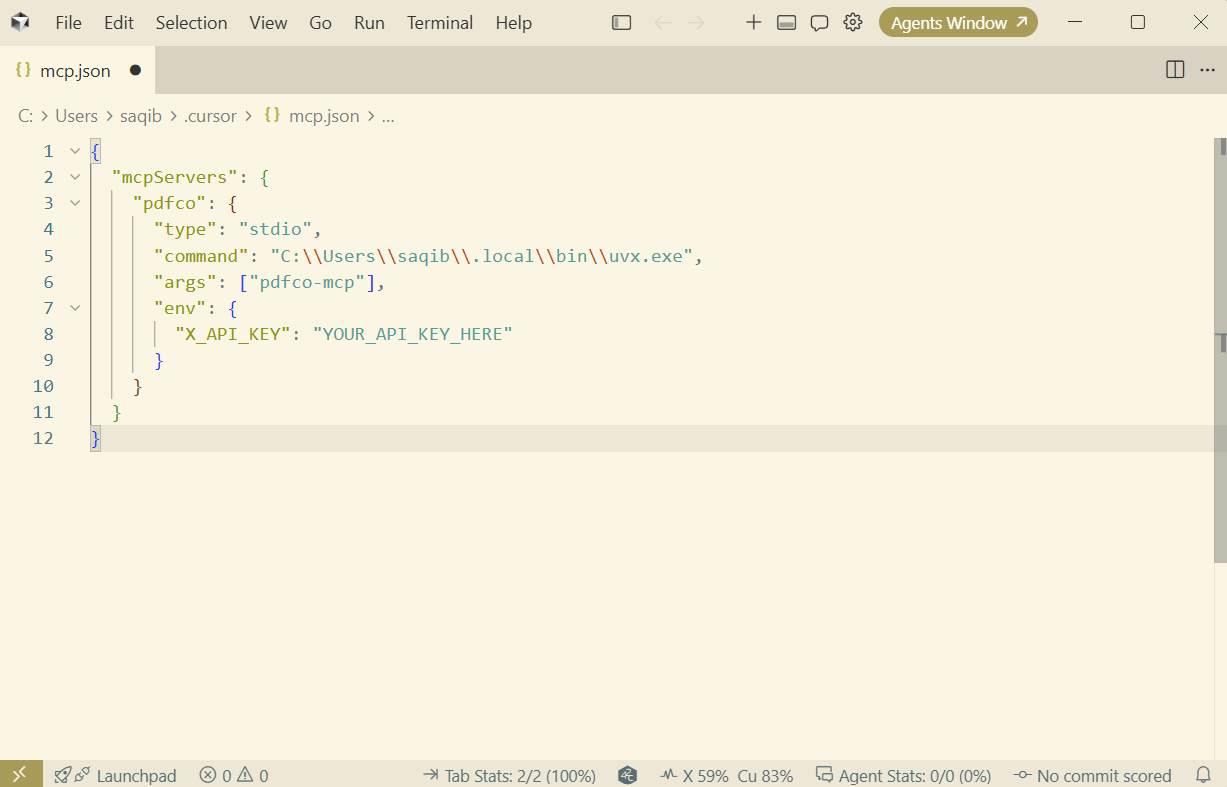
A PDF.co server entry with an API-key placeholder.
Connect and check the tools
- Open a local chat. Select + > MCP in the chat composer.
- Find Pdfco and turn its toggle on if it is disabled. In versions with a Customize page, you can also manage the server there.
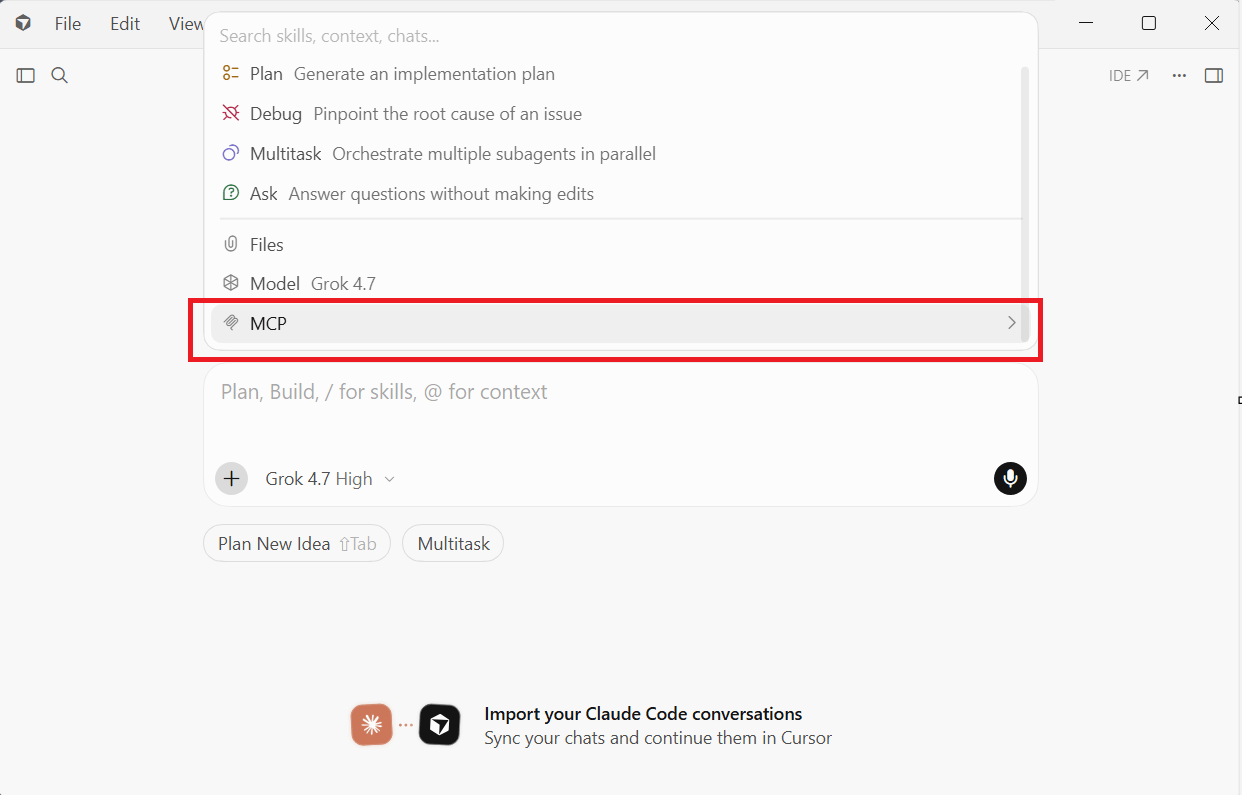
Open the MCP menu from the chat composer.
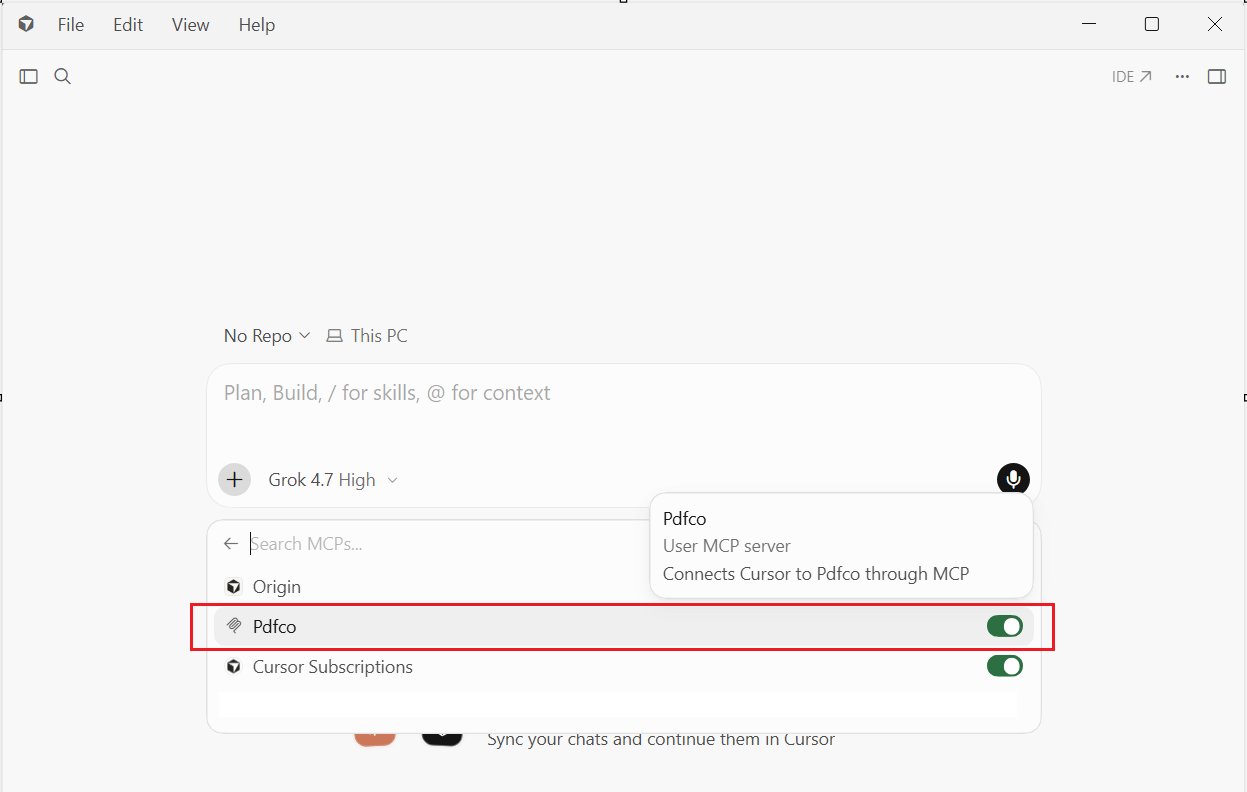
The personal PDF.co MCP server enabled in a local Cursor chat.
Run a sample conversion
Send the following prompt in the local chat: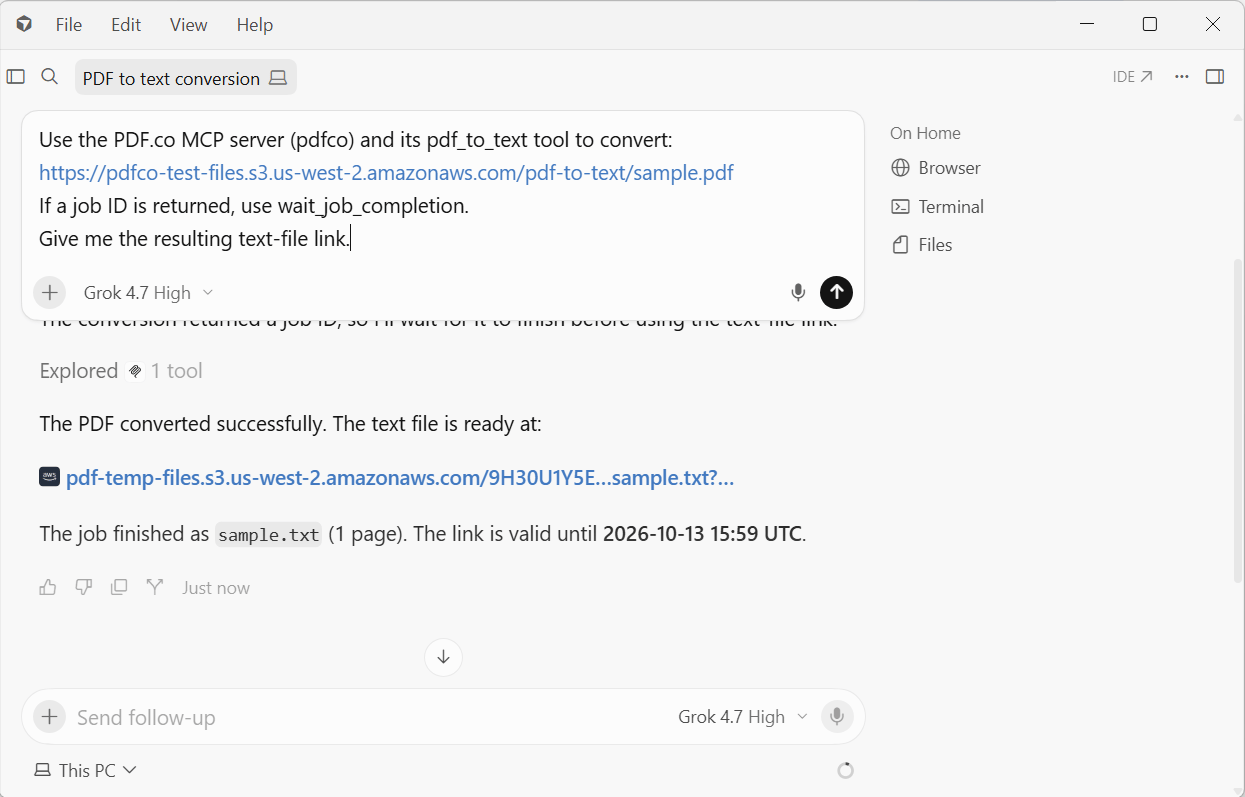
A completed PDF-to-text conversion in Cursor.
Troubleshooting
- If the server is absent, check which configuration location you edited and that the JSON is valid.
- If the server is configured but the chat does not use its tools, open + > MCP, check that Pdfco is enabled, and explicitly name the PDF.co MCP in your prompt.
- If it cannot start, check the executable path and server output.
pdfco-mcpmust be an argument, not part of the executable path. - If tools are available but conversion fails, check
X_API_KEYand the PDF.co error response.