

codex.cmd commands use npm’s Windows launcher. If you already added pdfco through the desktop app’s Add MCP server form on the same host, skip configuration and continue with Open a new session.
Add the server from PowerShell
Find youruvx.exe path:
YOUR_PDFCO_API_KEY with your PDF.co API key, keeping the X_API_KEY= prefix:
--env argument must be in KEY=VALUE form. The server reads the key from the environment variable named X_API_KEY.

Example registration command in Windows PowerShell, with an API-key placeholder.
The command saves the server in
%USERPROFILE%\.codex\config.toml, or in CODEX_HOME if you set a custom location. The desktop app and CLI share settings on the same Codex host; configure pdfco only once.Open a new session
Check thatpdfco is listed as enabled, then start Codex:
/mcp to inspect the active servers and PDF.co tools. codex.cmd mcp list confirms configuration; the active connection and a real tool call confirm that the server works.
Run a sample conversion
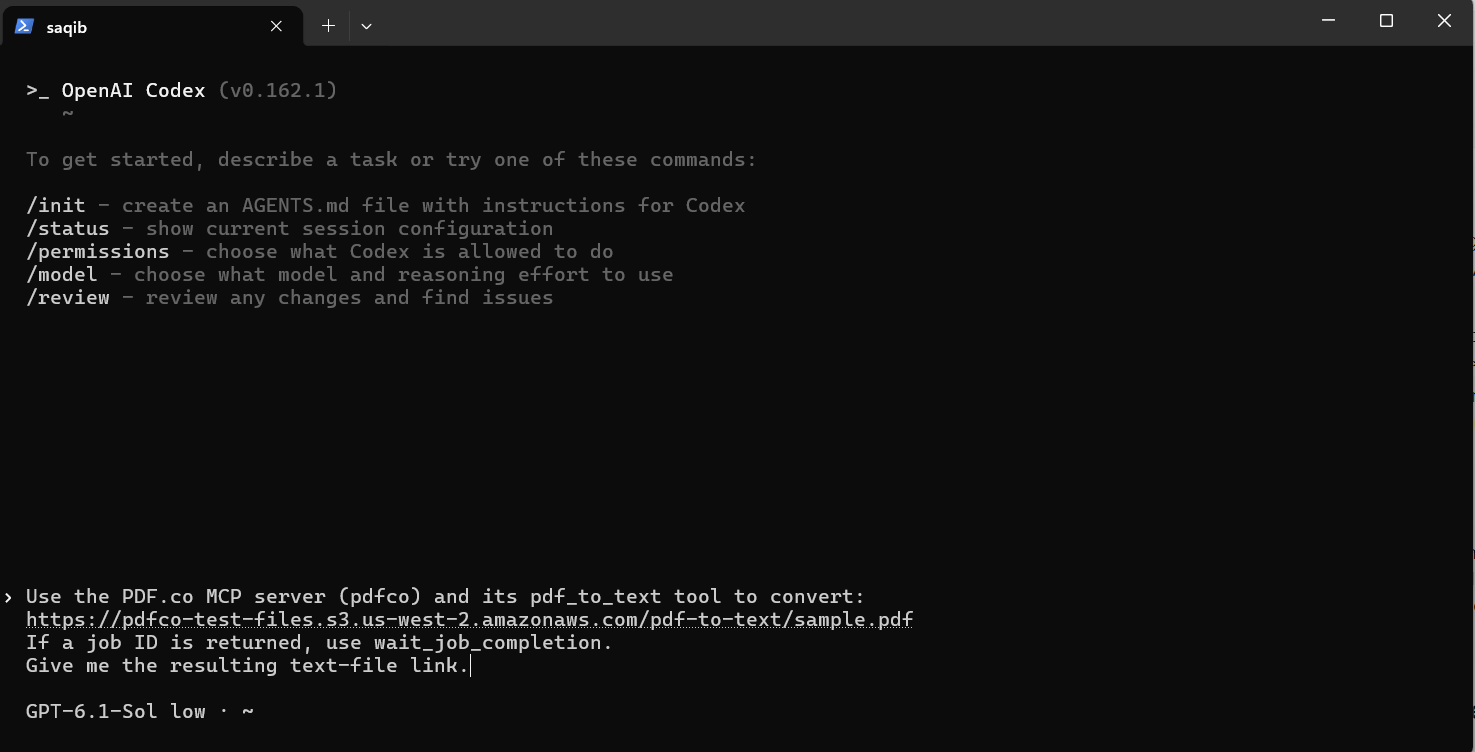
The sample conversion prompt in Codex CLI 0.162.1 on Windows.
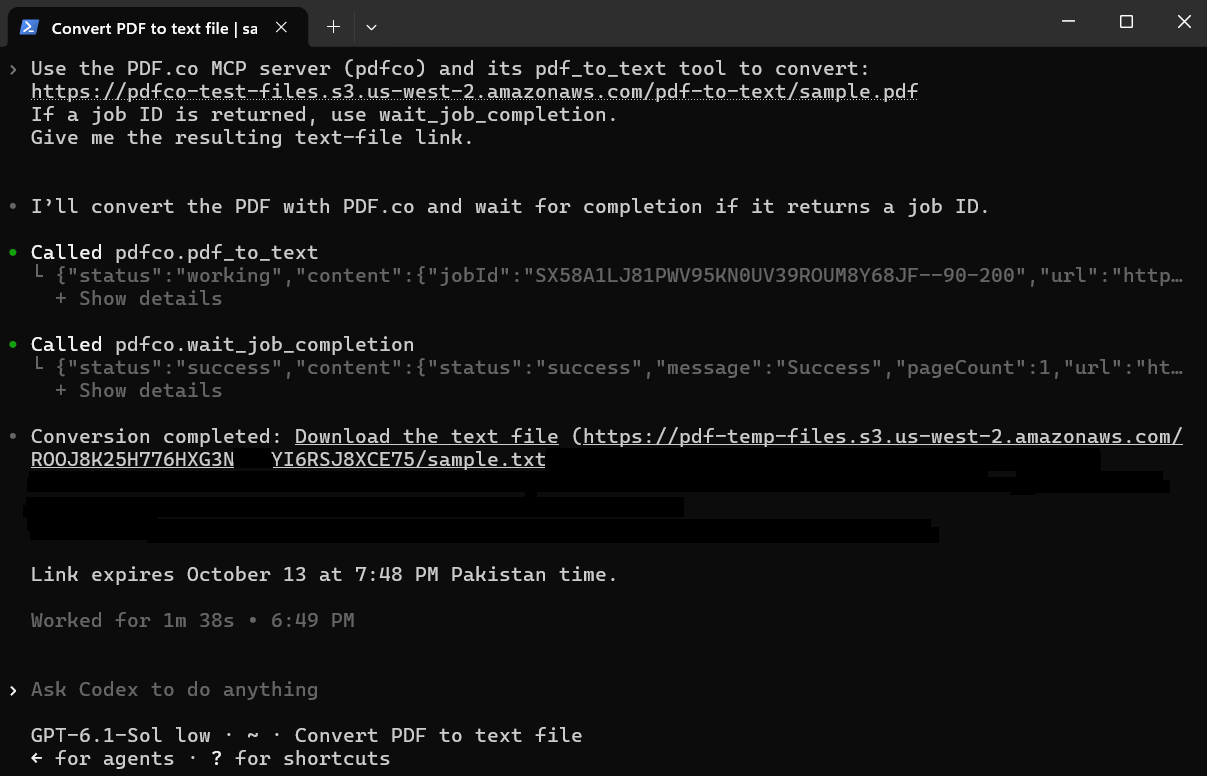
A completed PDF-to-text conversion, with signed output URL details hidden.
Troubleshooting
- If
mcp addreports that environment entries must be inKEY=VALUEform, keepX_API_KEY=before your key inside the quoted--envargument. A key by itself is not a valid argument. - If the configuration cannot be parsed, check that
mcp_servers.pdfcoand itsenvtable each appear only once. - If the server cannot start, check the absolute path to
uvx.exeand inspect the startup error shown by Codex. - If settings differ between projects, check for project-level
.codex/config.tomloverrides. - If tools load but processing fails, inspect the PDF.co error response and check the API key.