

Install with one click (recommended)
Install PDF.co in VS Code- Open the installation link above and allow your browser to open Visual Studio Code. It opens the MCP Server: pdfco details page.
- Review the name
pdfco, typestdio, commanduvx, argumentpdfco-mcp, and environment variableX_API_KEY. These fields are read-only on this page. - Select Install to add the server to your user configuration. Use this option for the setup in this guide.
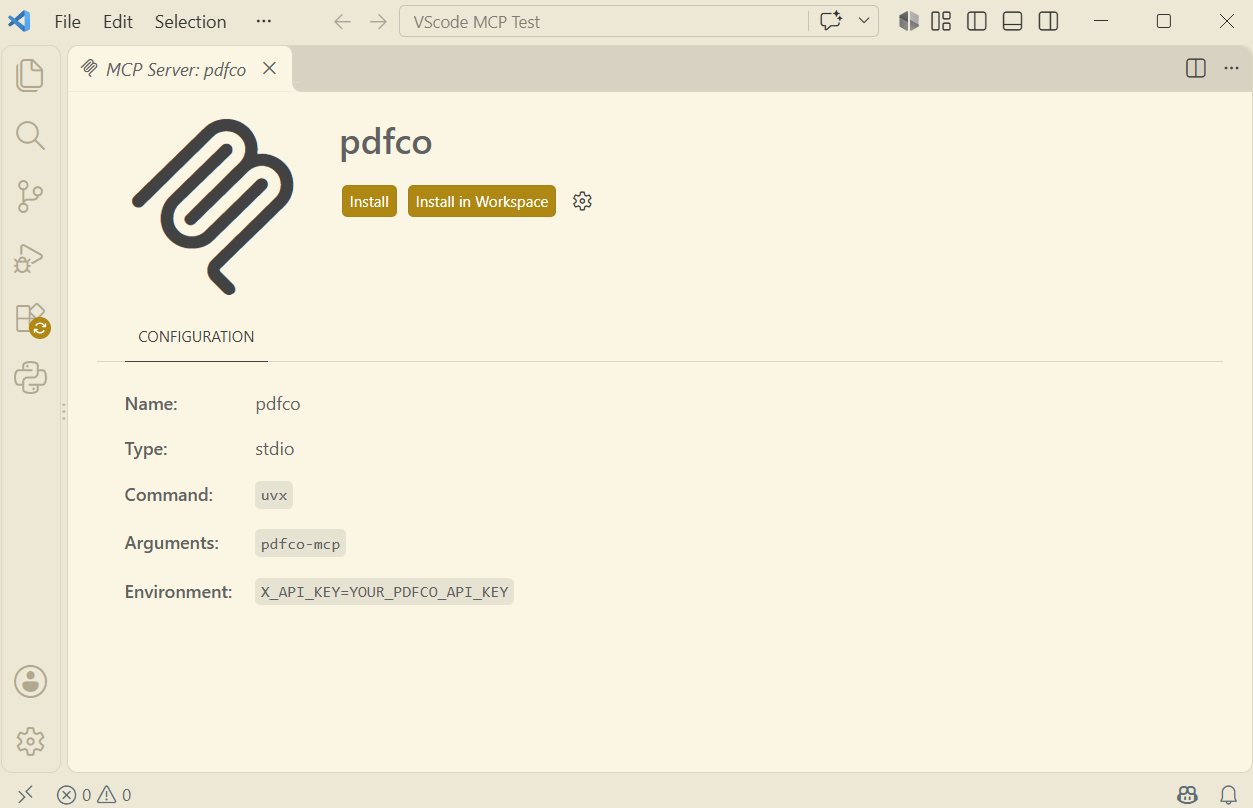
Select Install to add PDF.co to your user configuration.
- After installation, select the gear icon > Show Configuration (JSON).
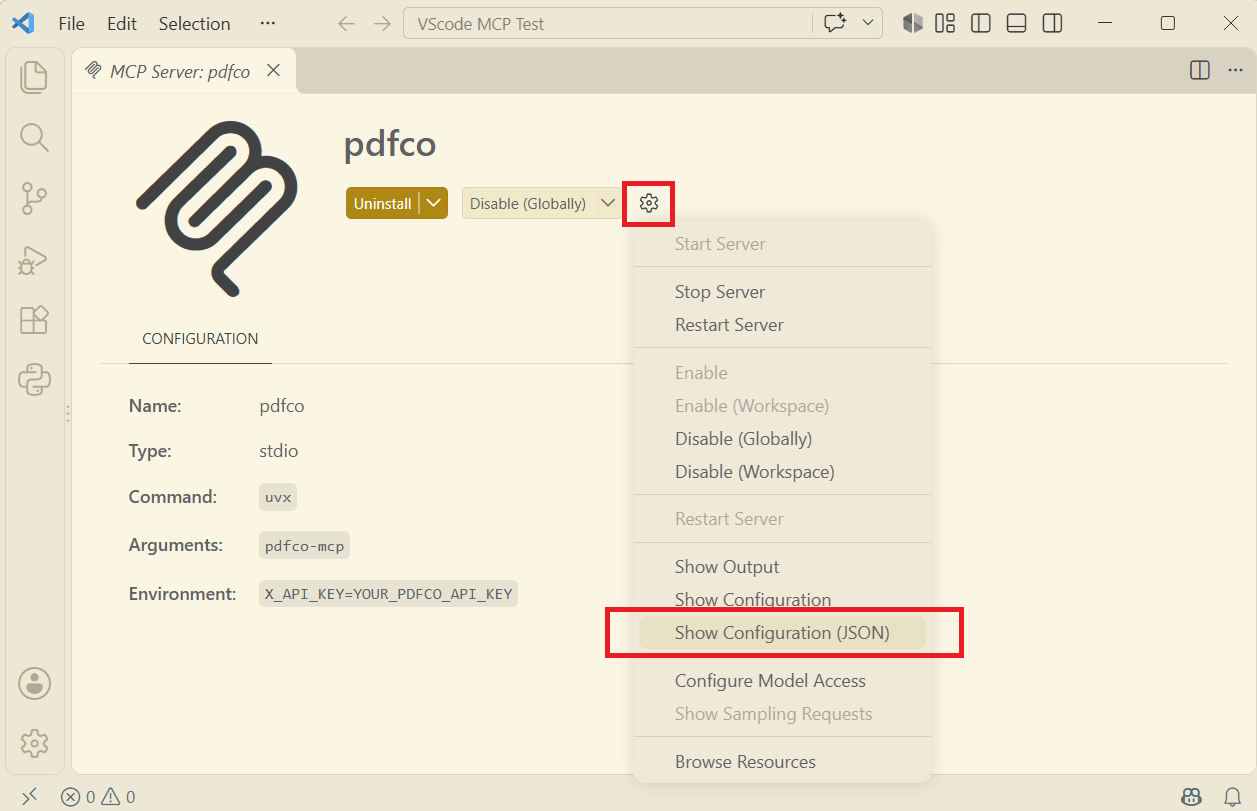
Open Show Configuration (JSON) after installation to edit the API key.
- Confirm that Show Configuration (JSON) opened your user configuration. Find
pdfcoand replaceYOUR_PDFCO_API_KEYunderenv.X_API_KEYwith your key from the PDF.co dashboard. Preserve the other settings and save.
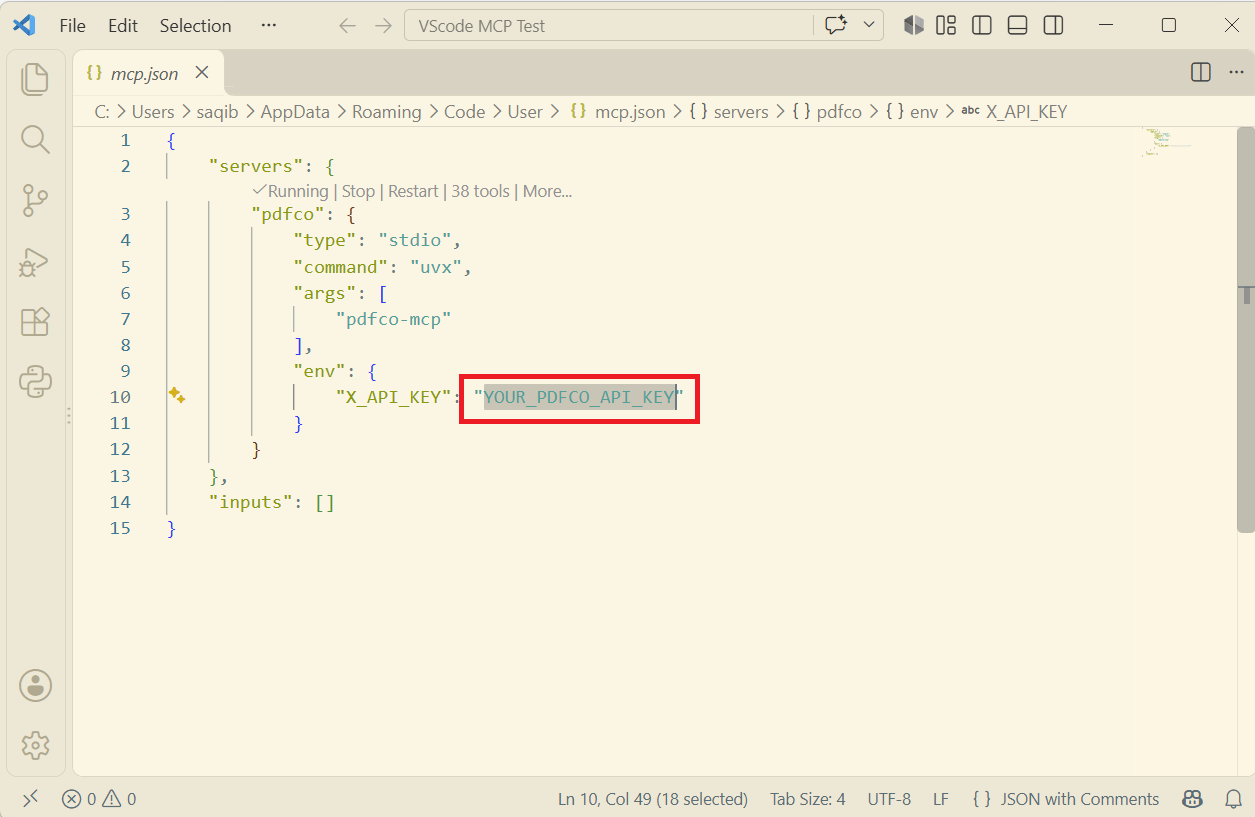
Replace the placeholder value for X_API_KEY in your user configuration.
- Continue with Start PDF.co to start or restart the server after saving your key.
VS Code does not let you edit the API key on the installation details page. Install first, then replace the placeholder through Show Configuration (JSON) before running a conversion. The server can show Running and list tools while it still contains the placeholder.
%APPDATA%\Code\User\mcp.json and uses the servers property. Profile locations can differ; MCP: Open User Configuration opens the file for your current profile. The manual method below uses this same user-profile format. The key is stored locally in that file; keep it and screenshots containing it private.
If pdfco is already configured in your user profile, reuse that entry and continue with the startup check.
If the installation link does not open VS Code
If the installation link does not open VS Code
Copy this URL into Chrome or Edge’s address bar, press Enter, and select Open Visual Studio Code when prompted:
uvx from your PATH. If VS Code cannot find it, replace the command with the full executable path from the prerequisites. The key placeholder must be replaced locally before processing.
Manual setup
- Press Ctrl+Shift+P and run MCP: Open User Configuration. This opens your user-profile
mcp.json, outside the project. - Add the
pdfcoentry inside the existingserversobject, preserving other entries and settings. For an empty file, use the complete example below:
- Replace
commandwith the full path returned by(Get-Command uvx -ErrorAction Stop).Source, using doubled backslashes in JSON. ReplaceYOUR_PDFCO_API_KEYin this user configuration with your key from the PDF.co dashboard. - Save, then continue with Start PDF.co. This configuration passes the key through
env; it does not show a separate key-input prompt.
Start PDF.co
- Save the configuration.
- Open the Command Palette with Ctrl+Shift+P and run MCP: List Servers.
- Select
pdfcoand choose Start, or Restart if it is already running. Review and accept the server trust prompt if shown.
Run a sample conversion
Send this prompt in your Copilot chat:Troubleshooting
- If the server is missing, run MCP: Open User Configuration and check that
pdfcois insideserversin your current user profile. - If PDF.co appears more than once, keep the entry in your user configuration and remove only the duplicate
pdfcoentries from the project’s.vscode/mcp.jsonor.mcp.json. Preserve other servers and settings. - If the server cannot start, inspect its output through MCP: List Servers and check the executable path.
- If tools load but processing fails, inspect the PDF.co error response, check
env.X_API_KEY, and confirm that you replaced the placeholder with your actual key.